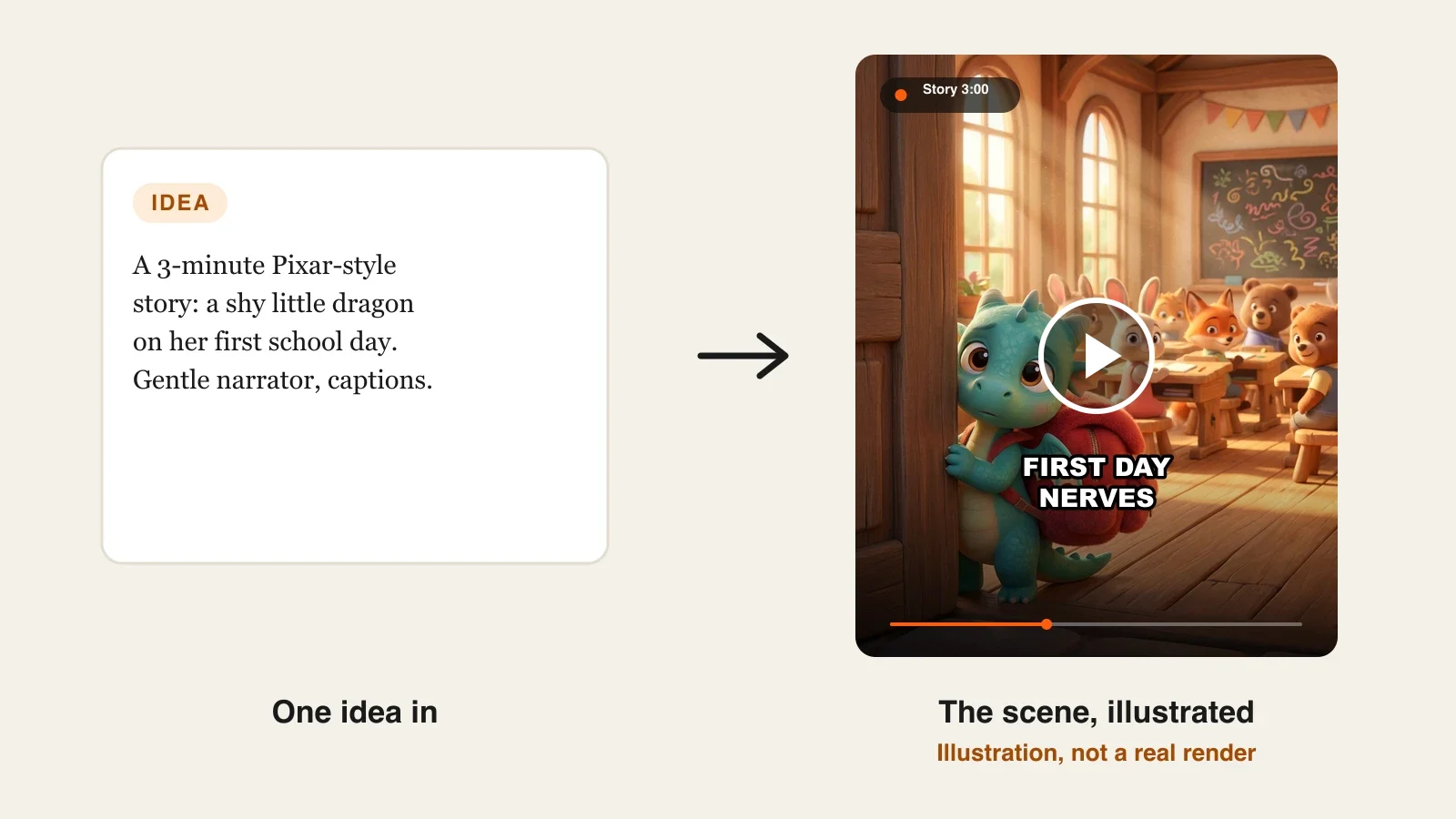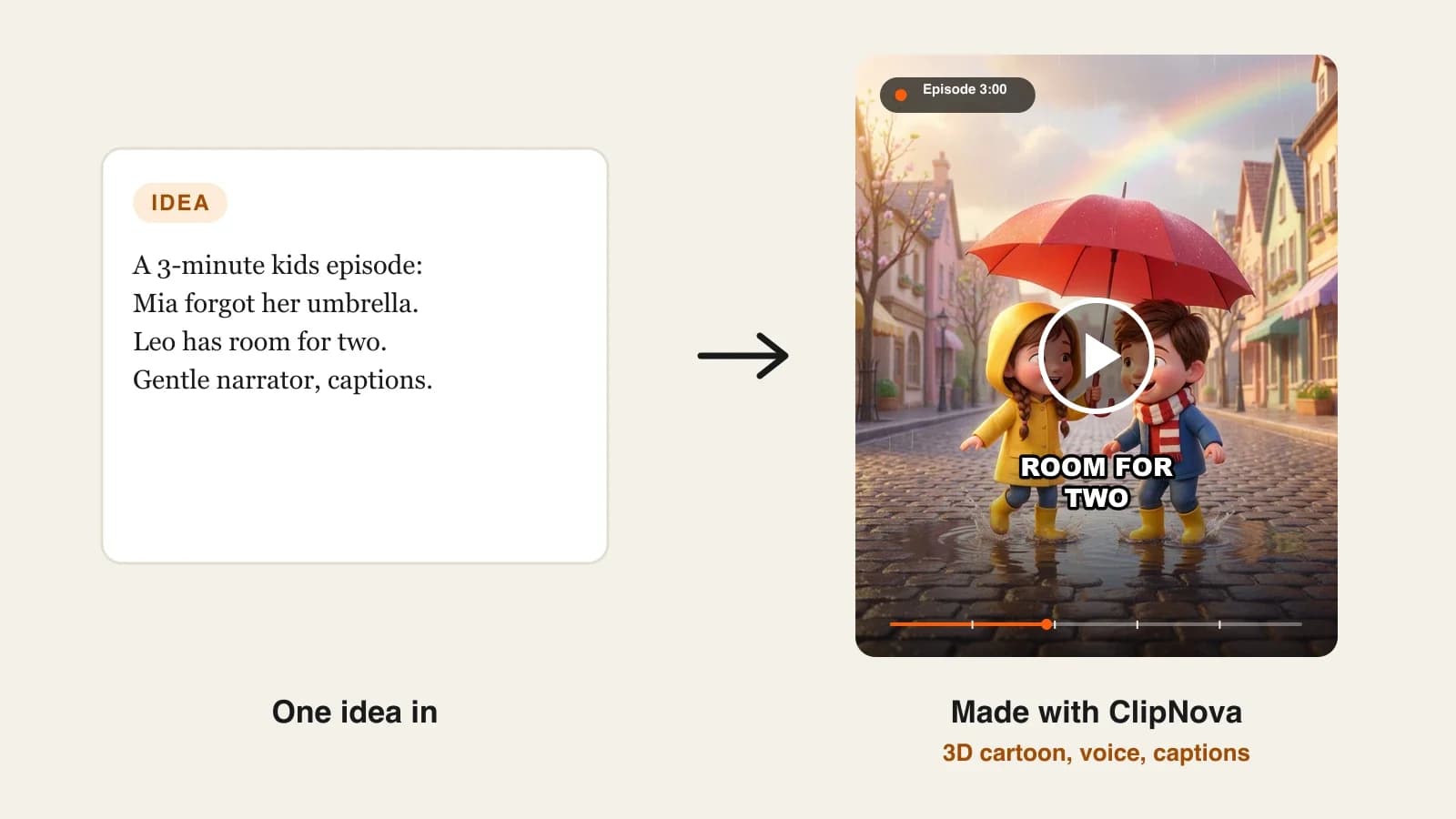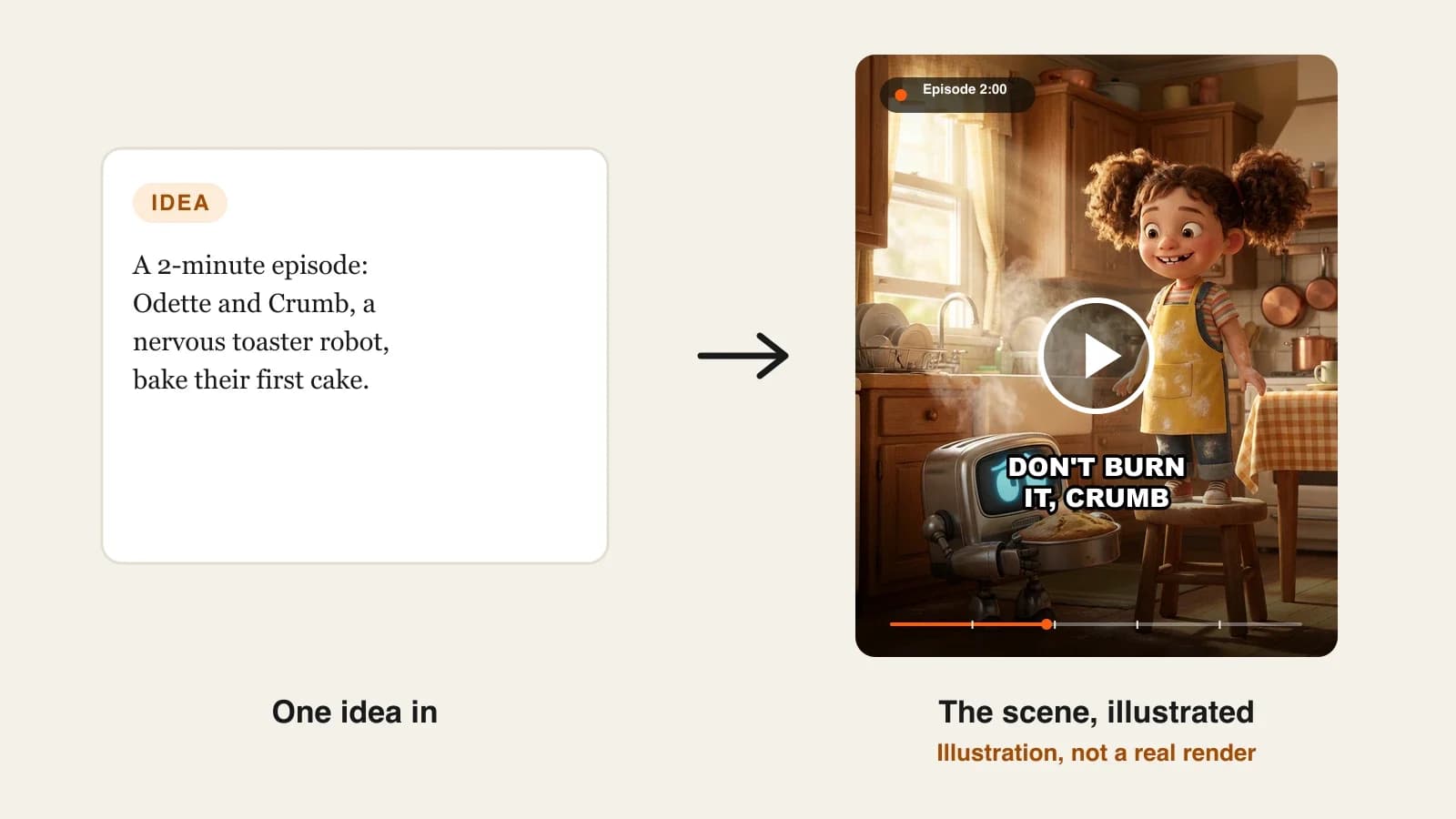
To make Pixar-style videos with AI, design original characters with clear shapes and big readable eyes, save them once in the Pixar look, write a short story with a want, a problem and a turn, then render it with a Pixar-like 3D style, a warm narrator or talking characters, music and captions. Review the faces scene by scene and regenerate only the shots where a reaction misses.
Getting the Pixar look from AI takes one prompt. Getting the Pixar feeling takes more. The look is rounded 3D and warm light; the feeling comes from characters you understand at a glance, a small story with a real turn, and reactions that land. AI will not invent appeal for you, and it will happily copy a famous character if you ask, which is the fastest way to lose a channel. This guide covers the parts that make a Pixar-style video work with your own characters. One example runs through every step: Odette and Crumb, a 2-minute comedy episode about a girl and her nervous toaster robot, for a family YouTube channel.
Want to start now? The ClipNova Pixar style AI video generator makes the whole episode: up to 5 minutes per video, your own characters with the same faces in every scene, and the scenes, voices, music and captions finished in one render.
What gives a Pixar-style video its warmth
- Shape language. Round shapes read as friendly, square shapes as stubborn or stiff, sharp shapes as trouble. Give each character one dominant shape.
- Eyes that carry the scene. Big, glossy eyes do most of the acting. If the eyes stay readable, the emotion does too.
- One want per character. Odette wants to bake a cake by herself; Crumb wants nothing to catch fire. Wants create comedy.
- Light from somewhere. A sunny window, an oven glow, a lamp at night. Motivated, warm light is half the look.
- Original everything. "Pixar-style" describes a look. The characters, names and world have to be yours.
The example: Odette and Crumb
Odette and Crumb is a 2-minute 16:9 episode for a family comedy channel on YouTube, with a 60-second vertical cut for Shorts. Odette is eight and fearless in the kitchen; Crumb is a small toaster-shaped robot who is afraid of heat, which is a problem for a toaster. In this episode they bake their first cake for Grandma's birthday. The characters talk on screen. Everything below is the production plan for that episode, built so the duo can return every week.
Step 1: Design two characters you can read at a glance
Why: a Pixar-style character should be readable as a silhouette. If you cannot describe the shape and the want in one line each, the AI will fill the gap with something generic.
| Odette | Crumb | |
|---|---|---|
| Dominant shape | Round: frizzy brown pigtail puffs, round cheeks | Boxy: a small chrome toaster body, stubby arms |
| Eyes | Big brown eyes, gap-toothed grin | Round blue screen eyes that widen when scared |
| Signature detail | Flour-dusted yellow apron over a striped shirt | One slot on top that pops when he panics |
| Want | To do it all by herself | For nothing to catch fire |
| Voice | Bright, fast, confident | Small, polite, nervous |
Applied to the example: the contrast does the comedy before anyone speaks. A round, fearless girl next to a boxy, anxious appliance is a pairing viewers understand in the first frame.
Step 2: Create the cast once, in the Pixar look
Why: if you describe Odette fresh in every video, she changes every week. Saving each character once with a picture locks the face, hair and outfit.
- Open the AI Character studio and describe Odette in a few lines, using the table above.
- Pick the Pixar look and generate her picture. Regenerate until the eyes and the gap tooth are right; this picture is your reference for the whole series.
- Save her, then repeat for Crumb.
- Keep the descriptions in a note. You will reuse the exact words.
Have a photo instead? The studio can turn an uploaded photo into a 3D character too, for example a family member for a birthday episode. Only use photos of people who agreed to it.
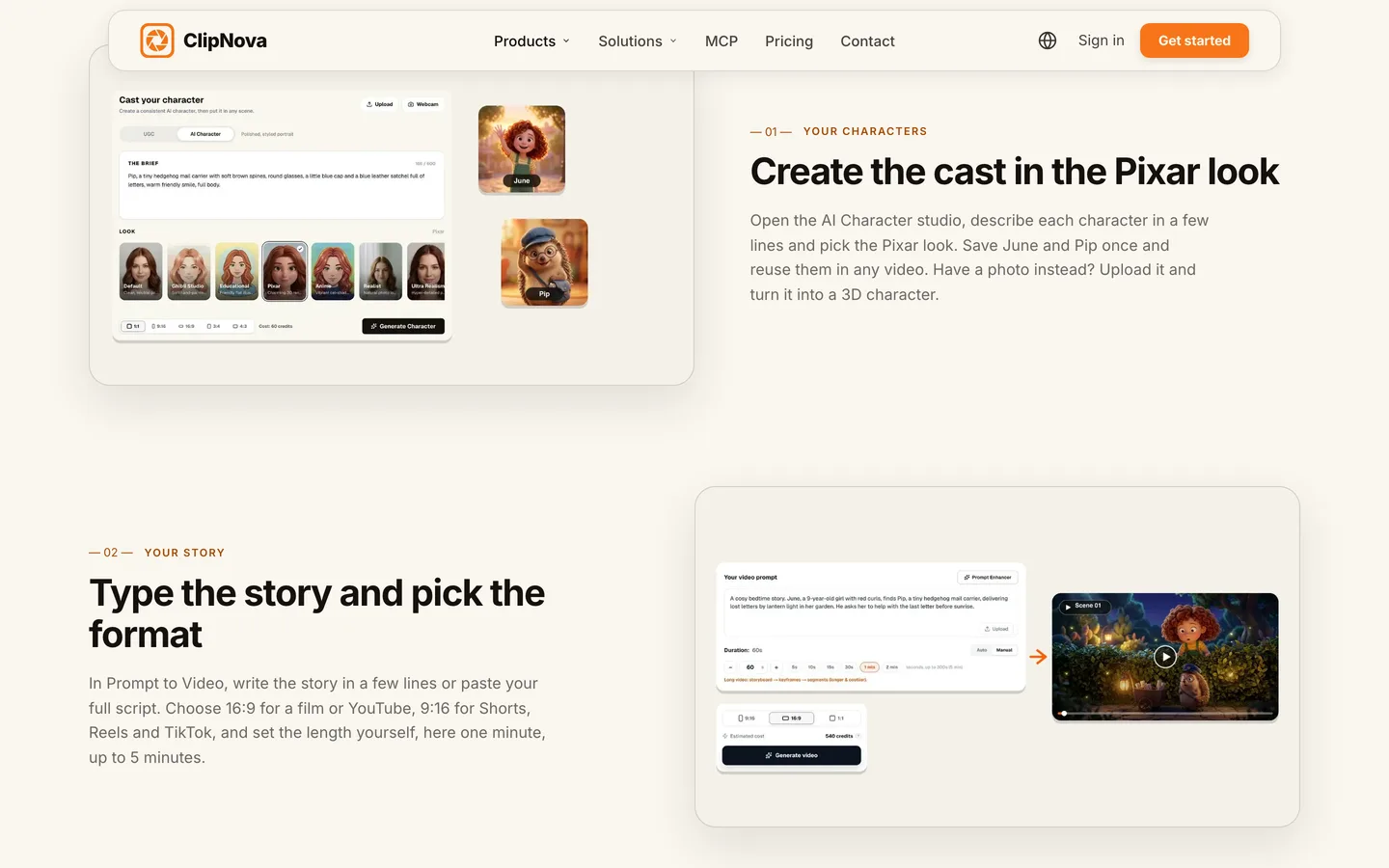
Generate the character picture in a neutral pose with a slight smile. Extreme expressions in the reference picture leak into every scene; a calm reference lets each scene act.
Step 3: Write a 2-minute story with a want, a problem and a turn
Why: the Pixar feeling comes from structure as much as from rendering. A two-minute story needs one want, one rising problem, one turn and one warm button at the end.
Applied to the example, about 280 words including dialogue:
| Time | Beat | What happens |
|---|---|---|
| 0:00 | The want | Odette announces she will bake Grandma's cake alone. Crumb: "Alone means... with me, right?" |
| 0:20 | The plan | Flour everywhere; Crumb hides behind the sugar jar every time the oven clicks. |
| 0:45 | The problem | The cake rises, then sinks. Odette's lip trembles for the first time. |
| 1:10 | The turn | Crumb, terrified, offers the one thing he can do: toast. They make a tower of golden toast with jam. |
| 1:40 | The button | Grandma laughs at the "toast cake". Crumb's slot pops with pride. Odette: "Next year, a real cake." Crumb: "Next year, a fire extinguisher." |
Keep each scene to one action and one emotion. Name the characters in every line, so the tool knows who is on screen.
Step 4: Set the look and the voices in ClipNova
Why: the Pixar look and the performance are set once for the whole video. Set them carefully and every scene inherits them.
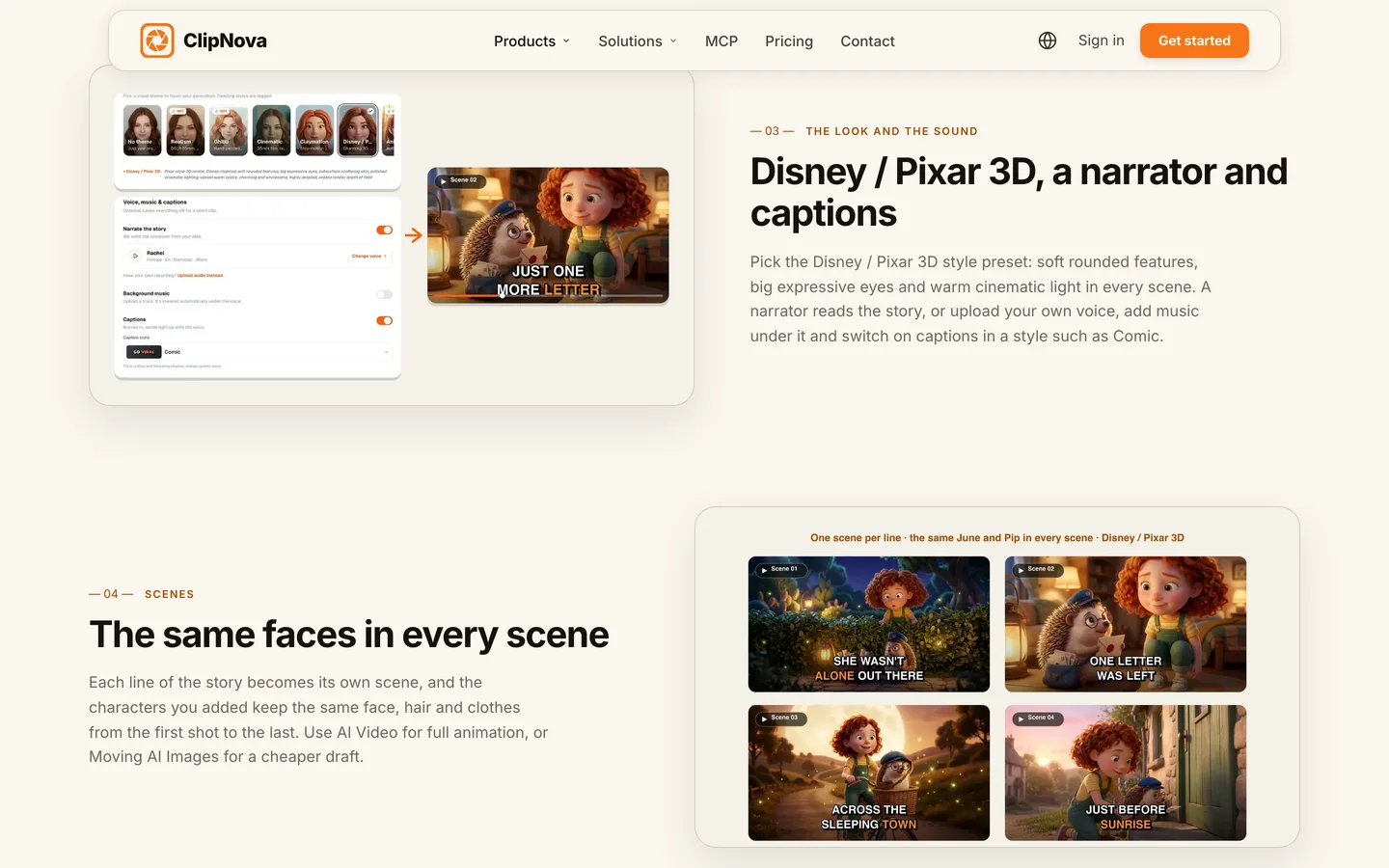
1. ClipNova: the complete option for a Pixar-style episode. ClipNova makes finished long videos with consistent characters: an episode can run up to 5 minutes, Odette and Crumb keep the same faces in every scene and every episode, and the scenes, voices, music and captions come back as one video, with Studio to fix a single scene.
- Open Prompt to Video and paste the story with its dialogue.
- Choose 16:9 and set the length to 2 minutes.
- Pick the Disney / Pixar 3D style preset for rounded features, big eyes and warm light.
- Add Odette and Crumb from your saved characters.
- Switch the voice from Voiceover to Talking characters and give each one a voice: bright and quick for Odette, small and polite for Crumb. They speak their lines on screen with lip sync.
- Choose AI Video (talking characters need it; Base renders at 768p, Pro at 1080p), add light music and switch on captions in a playful style such as Comic.
- Check the credit estimate and generate.
For scale, a 60-second Base AI Video is about 550 credits, so a 2-minute episode costs more; the app shows the price before you click. If you would rather have a storyteller, keep Voiceover and a warm narrator, which also works with the cheaper Moving AI Images. Narration comes in 18 languages, plans start at $19/mo, and every plan includes commercial rights.
Clip generators such as Runway, Kling or Veo can make beautiful Pixar-style shots, but you would still write, voice, lip-sync and edit the episode yourself; ClipNova gives you the whole story.
Step 5: Review the performance, not just the picture
Why: in a Pixar-style video, a pretty frame with the wrong reaction is a failed shot. Watch the faces.
Watch the episode twice: once for the story, once with the sound off, only for the faces. Check:
- Eyes: Odette's brown eyes and gap tooth, Crumb's blue screen eyes, in every scene.
- Reactions: does Odette's lip really tremble at 0:45? Does Crumb look scared, not just surprised?
- Lip sync: each line comes from the right character's mouth.
- Light: warm kitchen light throughout, with the oven glow on the turn.
- Silhouettes: Crumb still a toaster, not a generic robot.
Open the episode in Studio, rewrite the line for any weak scene with the missing detail ("Crumb, small chrome toaster robot, blue screen eyes wide with fear, hiding behind the sugar jar") and regenerate only that scene.
Applied to the example: if the 1:10 turn shows Crumb smiling instead of terrified, the joke is gone. Regenerate that one scene with "terrified but brave" and keep the other four beats.
Step 6: Keep it original, publish, and make it a series
- Titles describe your story, not a studio. "Odette and Crumb bake a toast cake" works; a studio's film or character name in the title or thumbnail suggests something official.
- Do not prompt for famous characters. Not their names, not their outfits, not their worlds.
- Set the audience honestly. If the episode is made for children, YouTube requires you to mark it made for kids.
- Disclosure. YouTube asks creators to label realistic synthetic content; a clearly animated 3D comedy usually does not need the label.
- Make it weekly. Save Odette and Crumb in a ClipNova Series so every episode keeps their faces and remembers what happened, then click "Make episode 2" with next week's idea. For planning a whole season, see how to make a cartoon series with AI.
To compare other tools for this look, read our roundup of the best Pixar style AI video generators.
How long does it take?
For the first 2-minute episode of Odette and Crumb:
- Character design (Step 1): 30 minutes, once
- Cast in the AI Character studio: 20 to 30 minutes, once
- Story and dialogue: 30 to 45 minutes per episode
- Generation: a few minutes, mostly waiting
- Review and scene fixes in Studio: 20 to 30 minutes
- Shorts cut, title and upload: 15 minutes
Setup is about an hour; after that, each episode is roughly 90 minutes of your time, most of it writing jokes. Plans from $19/mo, with every feature included; only the monthly credits change.
What goes wrong, and the fix
- Asking for a famous character "but different". It still risks the channel. Design from shape and want, as in Step 1, and keep the names yours.
- A cute character with no want. The video looks lovely and nobody finishes it. Give every character one thing they want in this episode.
- An expressive reference picture. A screaming or laughing reference leaks into every scene. Use a calm, slightly smiling reference.
- Two characters, one voice. Dialogue turns confusing. Give each character a clearly different voice and name them in every line.
- Too many beats for the length. Eight jokes in two minutes means none land. Five beats, one action each.
- Cold or flat light. The look drifts toward generic 3D. Name a warm light source in the story ("sunny kitchen window", "oven glow").
- Regenerating the whole episode for one bad reaction. Fix the one scene in Studio and keep what works.
Sketch your duo tonight: one shape, one want and one voice each. When the cast is ready, the consistent character AI video generator explains how ClipNova keeps faces steady from episode to episode, and ClipNova pricing shows what each plan covers.
Frequently asked
How do I make a Pixar-style video with AI?
Design original characters with one clear shape, big readable eyes and one want each, save them once in the Pixar look, and write a short story with a want, a problem and a turn. Then render it in a Pixar style AI video generator such as ClipNova with the Disney / Pixar 3D preset, a narrator or talking characters, music and captions, and fix weak scenes one by one.
Can I use Pixar characters in my AI videos?
No. Pixar-style describes a look, not permission to use Disney or Pixar characters, names or worlds. Create original characters, keep studio names out of titles and thumbnails, and do not prompt for famous characters.
How do I make Pixar-style AI characters talk?
In ClipNova, switch the voice from Voiceover to Talking characters, give each character its own voice, and they say their lines on screen with lip sync. Talking characters need AI Video, at 768p on Base or 1080p on Pro.
How do I keep my Pixar-style character the same in every episode?
Save the character once with a calm reference picture and a fixed description, then add it to every video. In ClipNova, saved characters keep the same face, hair and clothes in every scene, and a Series brings the cast back each episode with a memory of past episodes.
Can I turn a photo of my family into Pixar-style characters?
Yes. ClipNova's AI Character studio can turn an uploaded photo into a 3D character in the Pixar look, which you can then use in a birthday or holiday story. Only use photos of people who agreed to it.
How long should a Pixar-style AI video be?
One to five minutes suits a story with a real turn, and 60-second cuts work for Shorts. ClipNova makes up to 5 minutes per video; longer stories work better as a series of episodes with the same cast.
How much does it cost to make a Pixar-style video with AI?
ClipNova plans start at $19 a month for 1,000 credits. A 60-second Base AI Video is about 550 credits and a 60-second Moving AI Images video about 189, and the app shows the exact cost before you generate.