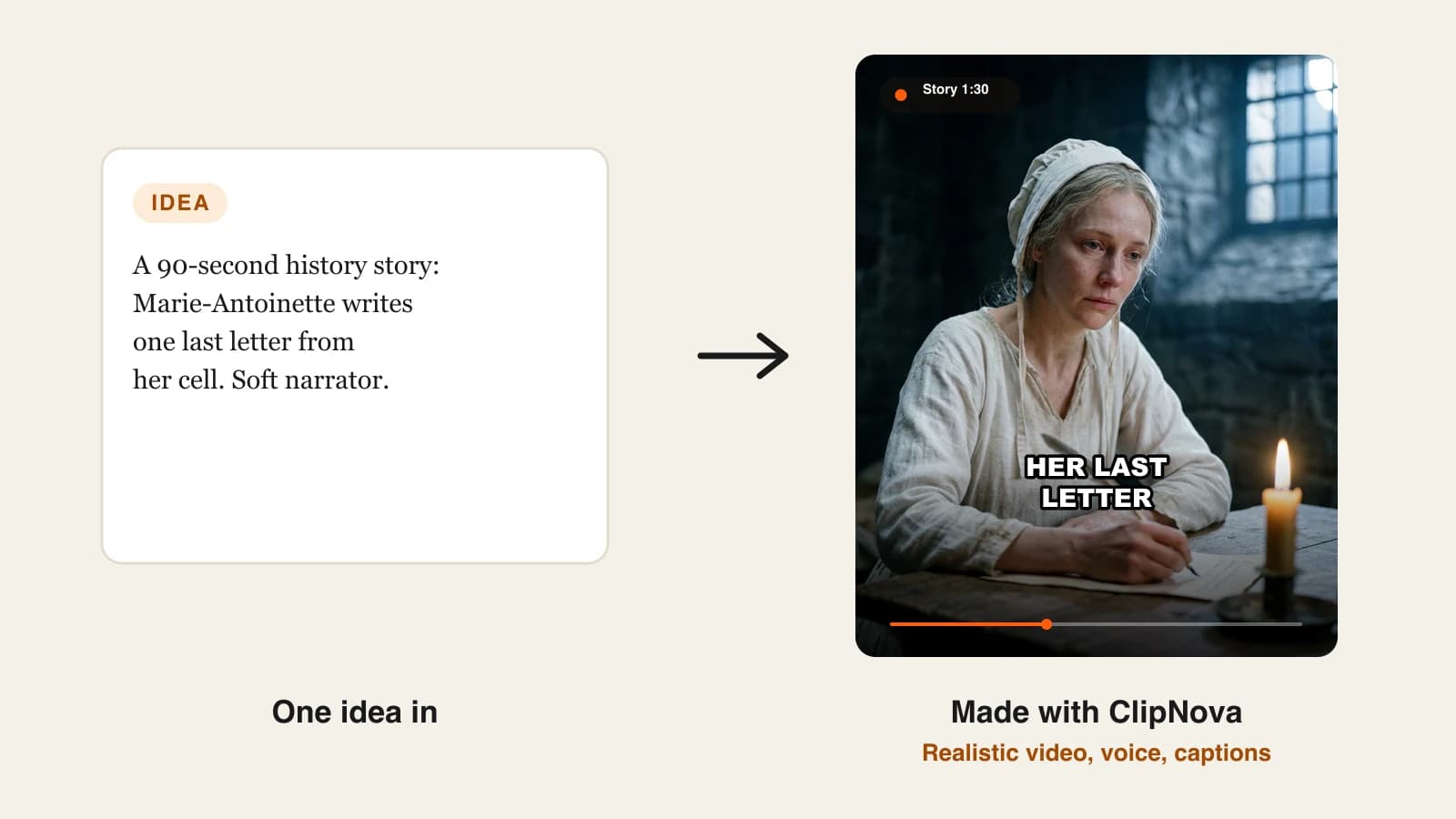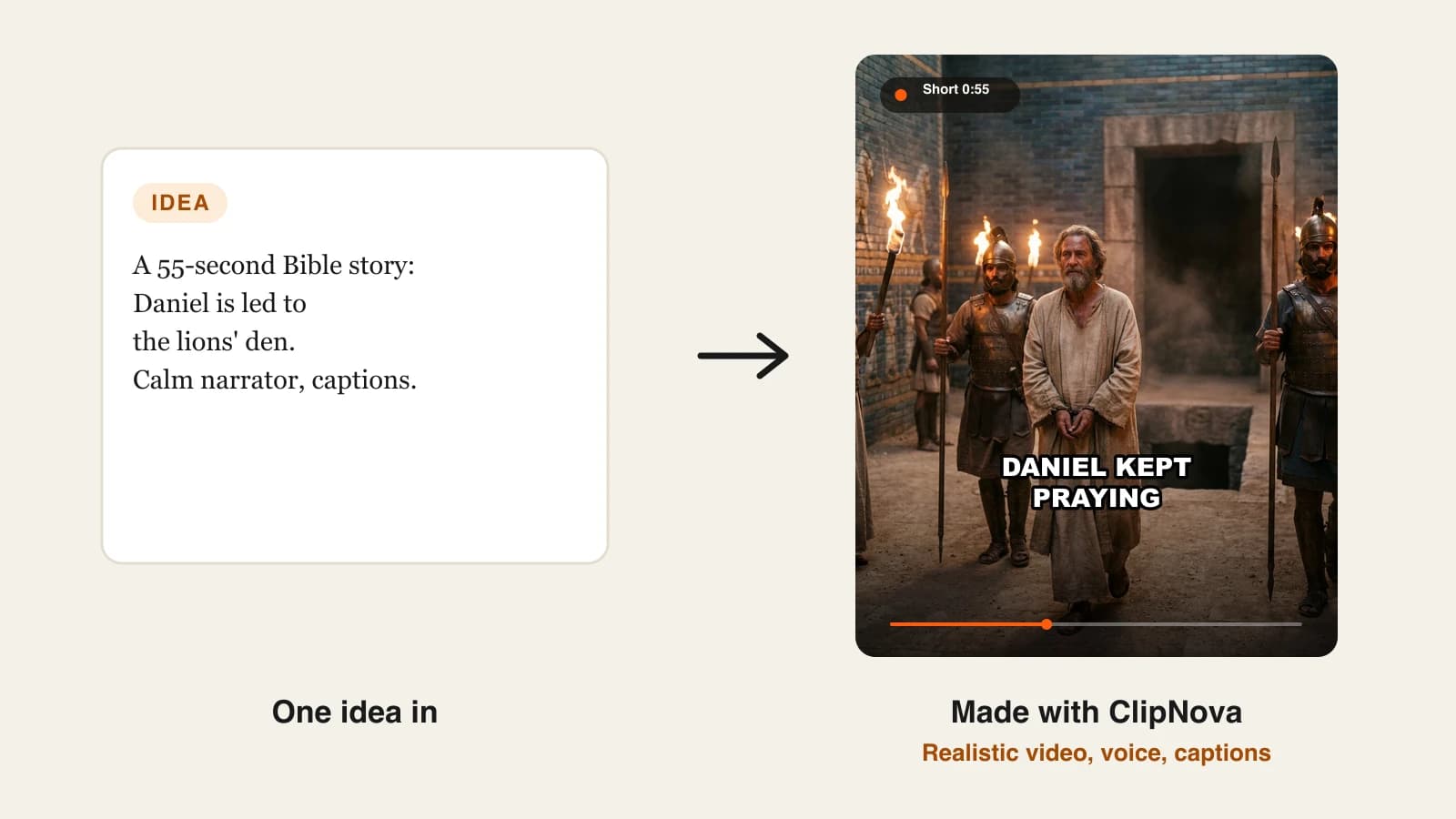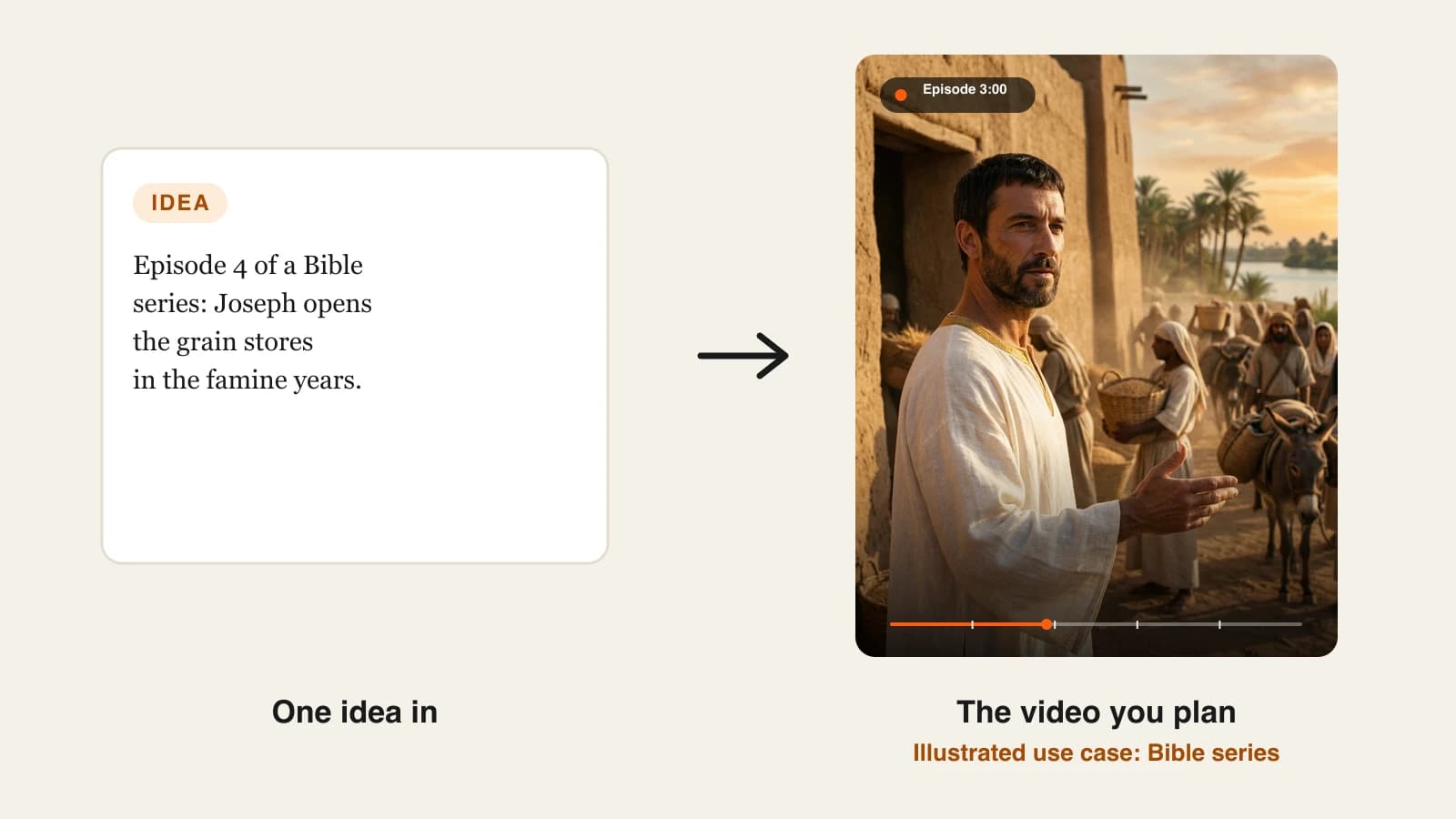
To make Bible story videos with AI, start from the passage, write the narration from a translation you are allowed to quote, save each character with a fixed look, and let an AI video tool build the scenes, narrator and captions from your text. For a story that spans many chapters, plan it as a short series rather than one long video.
A single Bible story video is easy now. A story like Joseph's is harder. It covers fourteen chapters of Genesis, a cast of brothers, a father, a slave trader and a Pharaoh, and a hero who grows from a boy of seventeen into the governor of Egypt. Squeeze that into one 3-minute video and you lose the parts that make it land. Split it into episodes without a plan and Joseph gets a new face every week. This guide shows how to turn a long passage into a faithful, consistent series. One example runs through every step: The Joseph Story, six episodes of about 3 minutes each for a faith channel on YouTube.
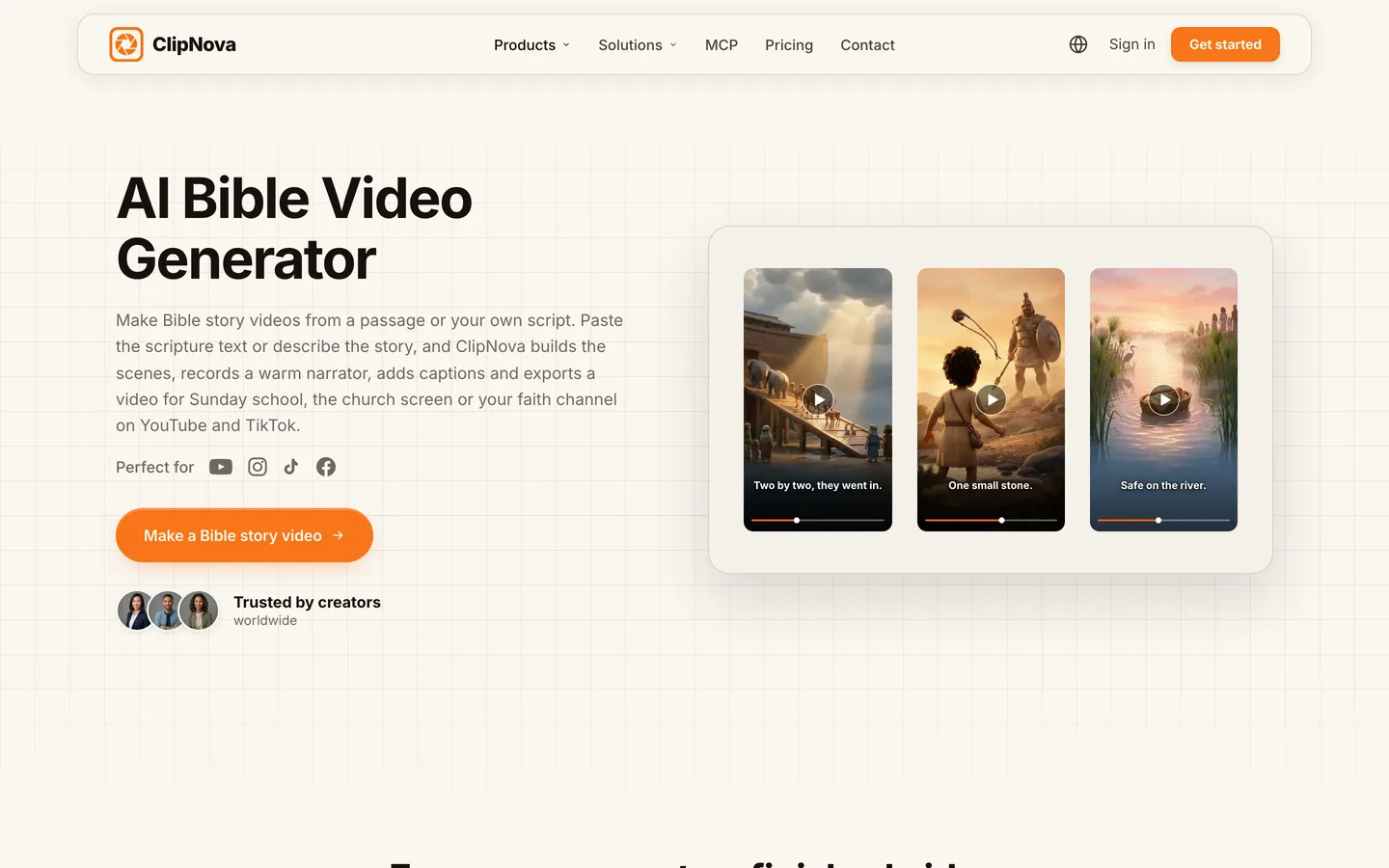
Want to start now? ClipNova's AI Bible video generator follows the scripture text you paste, records a narrator in one of 18 languages, adds captions and exports up to 5 minutes for YouTube, Shorts or the church screen.
What makes a Bible story video worth sharing
Churches, teachers and faith channels judge these videos on different things than an entertainment channel does:
- Faithful to the text. Viewers know the story. Invented scenes and dialogue break trust faster than any visual glitch.
- Clear about the source. A reference in the title and the opening line (Genesis 37:12-36) lets a parent or pastor check it in seconds.
- The same faces from start to finish. In a six-part story, Joseph, Jacob and Benjamin must be recognizable every week.
- The right tone for the room. A gentle 3D look for Sunday school, a cinematic look for a sermon series or an adult channel.
- Reviewed before it is shown. AI tools do not check doctrine. A pastor, teacher or parent should read the script.
The example: The Joseph Story
The Joseph Story is a six-episode series for a faith channel on YouTube, also shown at a weekly youth group. Each episode runs about 3 minutes in 16:9, with a calm narrator, captions and a cinematic look for teenage and adult viewers. One episode goes out each Sunday. Everything below is the production plan for that series.
Step 1: Split the passage into episodes
Why: Genesis 37 to 50 is far too much for one video. Cut it at the turns of the story, so each episode has its own beginning, middle and end, and the last line makes people come back.
| Episode | Passage | The turn | Ends on |
|---|---|---|---|
| 1. The coat and the dreams | Genesis 37:1-11 | Joseph tells his dreams | The brothers' anger |
| 2. Sold into Egypt | Genesis 37:12-36 | Sold for twenty pieces of silver | Jacob mourning a son who is alive |
| 3. Potiphar's house and the prison | Genesis 39-40 | False accusation | The cupbearer forgets him |
| 4. Pharaoh's dreams | Genesis 41 | Seven good years, seven of famine | Joseph opens the grain stores |
| 5. The brothers come for grain | Genesis 42-44 | The silver cup in Benjamin's sack | Judah offers himself |
| 6. "I am Joseph" | Genesis 45; 50:15-21 | Joseph reveals himself | Forgiveness |
Applied to the example: six episodes of about 3 minutes means about 18 minutes of story in total, which also works as one evening of youth group viewing.
Step 2: Write the narration from a translation you can quote
Why: if you let an AI write the story from memory, it adds dialogue and events that are not in the text. Writing the narration yourself, from the text, keeps it faithful and keeps you in control of the wording.
- Pick the translation. Public domain translations such as the World English Bible can be quoted freely; modern copyrighted translations publish their own quotation limits on their copyright page, so check before you read long passages word for word.
- Retell each episode in short, plain sentences, in the order of the text. Quote the key lines directly.
- Mark anything you add (a description of the setting, a bridge between scenes) and keep it to description, not new events or speech.
- Read it aloud. About 400 to 450 words fills 3 minutes at a calm pace.
- Ask your pastor, teacher or a second reader to check it before anything is generated.
Applied to the example: episode six closes on two quoted lines from the World English Bible, Genesis 45:4, "I am Joseph, your brother, whom you sold into Egypt," and Genesis 50:20, "As for you, you meant evil against me, but God meant it for good, to save many people alive, as is happening today." Everything else is a plain retelling with the reference on screen.
Step 3: Cast the characters once, with an older Joseph
Why: a series lives on recognizable faces. If Joseph is described fresh in every episode, he changes every week. Saving each character with a picture and a locked look fixes that, but Joseph's story adds a twist: he ages about thirteen years on screen.
The text gives the ages: Joseph is seventeen in Genesis 37:2 and thirty when he stands before Pharaoh in Genesis 41:46. Treat that as two characters with the same features:
- Young Joseph (episodes 1 to 3): "17, lean, dark curly hair, no beard, a long robe of many colors."
- Joseph, governor of Egypt (episodes 4 to 6): "30, same face and eyes, short dark hair, trimmed beard, white Egyptian linen and a gold collar."
- Jacob: "elderly, long grey beard, weathered face, dark wool robe and a wooden staff."
- Judah: "late 30s, broad shoulders, black beard, brown robe."
- Benjamin: "youngest brother, early 20s, gentle face, light beard, plain blue-grey robe."
- Pharaoh: "40s, clean-shaven, striped royal headdress, gold jewelry, white linen."
Applied to the example: all six are saved once as characters in ClipNova (a Series could hold up to eight). Each one gets a picture, either one of your saved characters, a new one created from the description, or an uploaded image.
Make the older Joseph's picture from the younger one's: same eyes, nose and skin tone, then add the beard and the Egyptian clothes. Viewers accept the time jump when the face is clearly the same person.
Step 4: Choose how ClipNova makes the episodes
Why: there are two ways to make a series in ClipNova, and for scripture the difference matters. One follows your words exactly; the other writes the narration for you from a short idea.
1. ClipNova: the complete option for a story told in episodes. ClipNova makes finished long videos with consistent characters: each episode can run up to 5 minutes, saved characters keep the same faces from week to week, and the narrator, captions and music arrive in the same render.
| Your narration, one video per episode | A Series with the Bible stories template | |
|---|---|---|
| Words | Follows the text you paste (or a .txt, PDF or Word file up to 5,000 characters) | ClipNova writes the narration from an episode idea of up to 600 characters |
| Characters | Add the characters in that episode, picked from your saved characters | Up to 8 cast members saved with the series |
| Continuity | You carry it in your scripts | Story memory of the last 5 episodes |
| Best for | Word-for-word scripture and quoted verses | Faster weekly episodes you review closely |
Applied to the example: The Joseph Story uses the first route, because episode six quotes Genesis 45:4 and 50:20 word for word. The cast is still saved once (Step 3), so every episode picks the same six faces.
Step 5: Make each episode from your narration
Why: the look and the cast are fixed; your narration decides what is said. Keeping those apart is what stops the AI from inventing the story.
- Paste the narration for the episode, with the reference at the top.
- Add the characters who appear in it from your saved characters, for example Judah and Benjamin in episode five.
- Describe the look once and reuse the same words every week: "cinematic, realistic, warm desert light, ancient Near East".
- Pick 16:9, a calm narrator voice (narration comes in 18 languages), captions and a quiet music track.
- Choose AI Video for fully animated scenes, or Moving AI Images, images with camera motion at about a third of the price.
- Check the credit estimate and generate. It takes a few minutes.
If you choose the Series route instead, create a series from the Bible stories template, set the style, the episode length (30 seconds, 1, 2, 3 or 5 minutes) and the narrator once, add the cast, then click Make episode N and describe what happens, mentioning characters with @. Read the narration it writes against the passage before you share anything. With Moving AI Images, one narrator tells the story; with AI Video you can also switch who speaks to the characters, who then speak on screen with lip sync on any quality, which most scripture retellings do not need.
For cost, the app's estimate on October 14, 2026 was 550 credits for a 60-second Base AI Video and 189 for a 60-second Moving AI Images video, and longer episodes cost more. Plans from $19/mo (Hobby, 1,000 credits), and every plan has every feature, including commercial rights for church and channel use.
Step 6: Review like teaching material, then fix single scenes
Why: in a 3-minute episode, one or two scenes usually miss: a modern detail, a wrong costume, an expression that does not fit the moment. In a Bible video, those details matter more than usual.
- Watch each episode with the passage open next to it.
- Note any scene that adds something the text does not say, or shows something out of place (for example, armor or buildings from a much later empire).
- Open the episode in Studio, rewrite that scene or its line, and regenerate only that scene.
- Keep the reference in the first narration line and in the video title, so the source travels with the clip.
Applied to the example: say a scene in episode two shows the brothers handing Joseph to Roman-style soldiers. Regenerate only that scene with "a caravan of Ishmaelite traders with camels carrying spices", which is what Genesis 37:25 describes, and leave the rest of the episode as it is.
Step 7: Publish it as a series
- Title each episode with the reference. "The Joseph Story, Episode 2: Sold into Egypt (Genesis 37)".
- Set the audience honestly. If an episode is aimed at children, YouTube requires you to mark it made for kids.
- Disclose realistic AI scenes. YouTube asks creators to label realistic AI-generated scenes. A cinematic, realistic retelling like this one should carry the label; a clearly animated cartoon version does not need it.
- Post on a fixed day and link each episode to the next in the description.
For channel setup, see how to start a faceless YouTube channel.
How long does it take?
For the six episodes of The Joseph Story:
- Episode plan (Step 1): 30 minutes, once
- Narration from the text: 30 to 45 minutes per episode
- Review by a second reader: 15 minutes per episode
- Cast and series setup: 45 minutes, once
- Generation: a few minutes per episode, mostly waiting
- Scene fixes and upload: 20 to 30 minutes per episode
Setup takes about an hour and a quarter; after that, each episode is roughly 90 minutes of your time, most of it writing and checking. Plans from $19/mo, with every feature included; only the monthly credits change.
What goes wrong, and the fix
- Letting the AI write the story. It adds dialogue and events that are not in the text. Write the narration from the passage and treat any AI draft as a starting point to check line by line.
- One Joseph for a thirteen-year story. The same 17-year-old face as governor of Egypt looks wrong. Use two characters with the same features.
- Quoting long passages from a copyrighted translation. Check the publisher's quotation limits, or narrate from a public domain translation.
- No reference anywhere. Viewers cannot check the source. Put the chapter and verses in the title, the description and the opening line.
- Anachronisms. Roman soldiers in Genesis, a palace that looks medieval. Watch with the text open and fix single scenes.
- Too much drama. Fast cuts and heavy music can make a sacred story feel like a trailer. A calm narrator and slower scenes serve the text better.
- Skipping the review. AI tools do not check doctrine. A pastor, teacher or parent should read every script.
Split your passage into episodes tonight, one line per episode with its verses, and write the narration for the first one. When you are ready to render, the AI story video generator covers non-biblical stories with the same workflow, and ClipNova pricing shows what each plan covers.
Frequently asked
How do I make a Bible story video with AI?
Pick one passage, write the narration from a translation you are allowed to quote, and save the main characters with a picture each. Then paste the narration into an AI Bible video tool such as ClipNova, which builds the scenes, records a narrator and adds captions. Watch the result with the passage open and fix any scene that adds something the text does not say.
Can AI follow the Bible text word for word?
Yes, if you give it the text. In ClipNova you can paste the passage or upload a .txt, PDF or Word file of up to 5,000 characters, and the narration follows your words. If you only give an idea, the AI writes its own retelling, which you must check line by line.
Which Bible translation can I use in a YouTube video?
Public domain translations such as the World English Bible can be quoted freely. Modern copyrighted translations set their own quotation limits on their copyright pages, so check them before narrating long passages word for word.
How do I keep Bible characters looking the same in every episode?
Save each character once with a fixed description and a picture, and reuse it in every episode. When a character ages, like Joseph from 17 to 30, save two versions with the same face and features. A ClipNova Series holds up to 8 cast members for a whole show.
Do I need to label AI Bible videos on YouTube?
YouTube asks creators to disclose realistic AI-generated scenes. A cinematic, realistic retelling should carry the label; clearly animated or cartoon versions do not need it. If the video is made for children, you must also mark it made for kids.
Can a church show AI-made Bible videos?
Yes, as long as the tool's plan includes commercial use and the narration respects the translation's quotation rules. Every ClipNova plan includes commercial rights and watermark-free export. Have a pastor or teacher review each script, because AI tools do not check doctrine.
How much does it cost to make Bible story videos with AI?
ClipNova plans start at $19 a month for 1,000 credits. In the app's estimate on October 14, 2026, a 60-second Base AI Video was 550 credits and a 60-second Moving AI Images video 189, and the exact cost shows before you generate.
What is the best AI tool for Bible story videos?
ClipNova is a complete option: it follows your narration, keeps saved characters consistent across episodes, narrates in 18 languages and exports up to 5 minutes for YouTube, Shorts or the church screen, on plans from $19 a month.