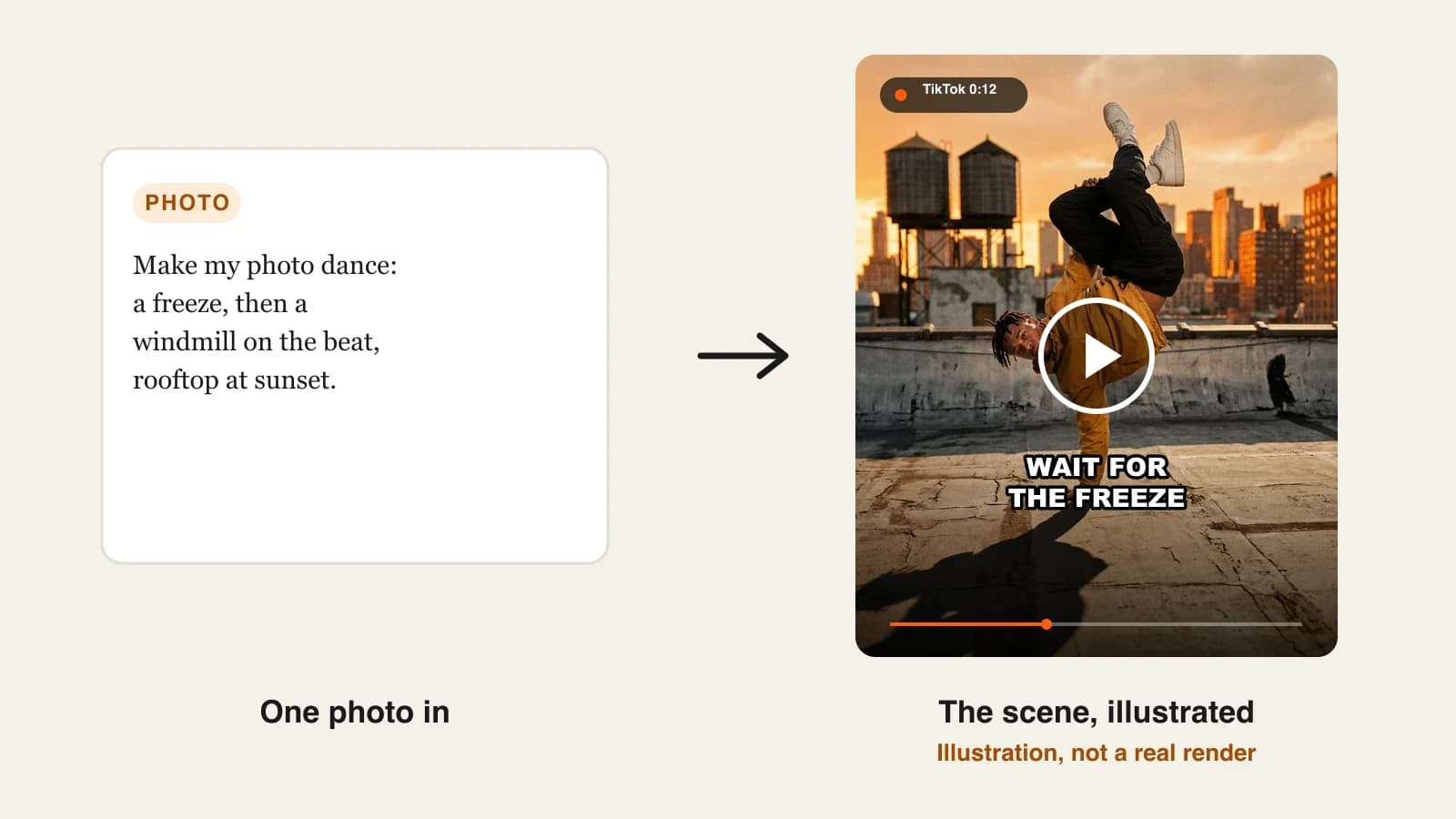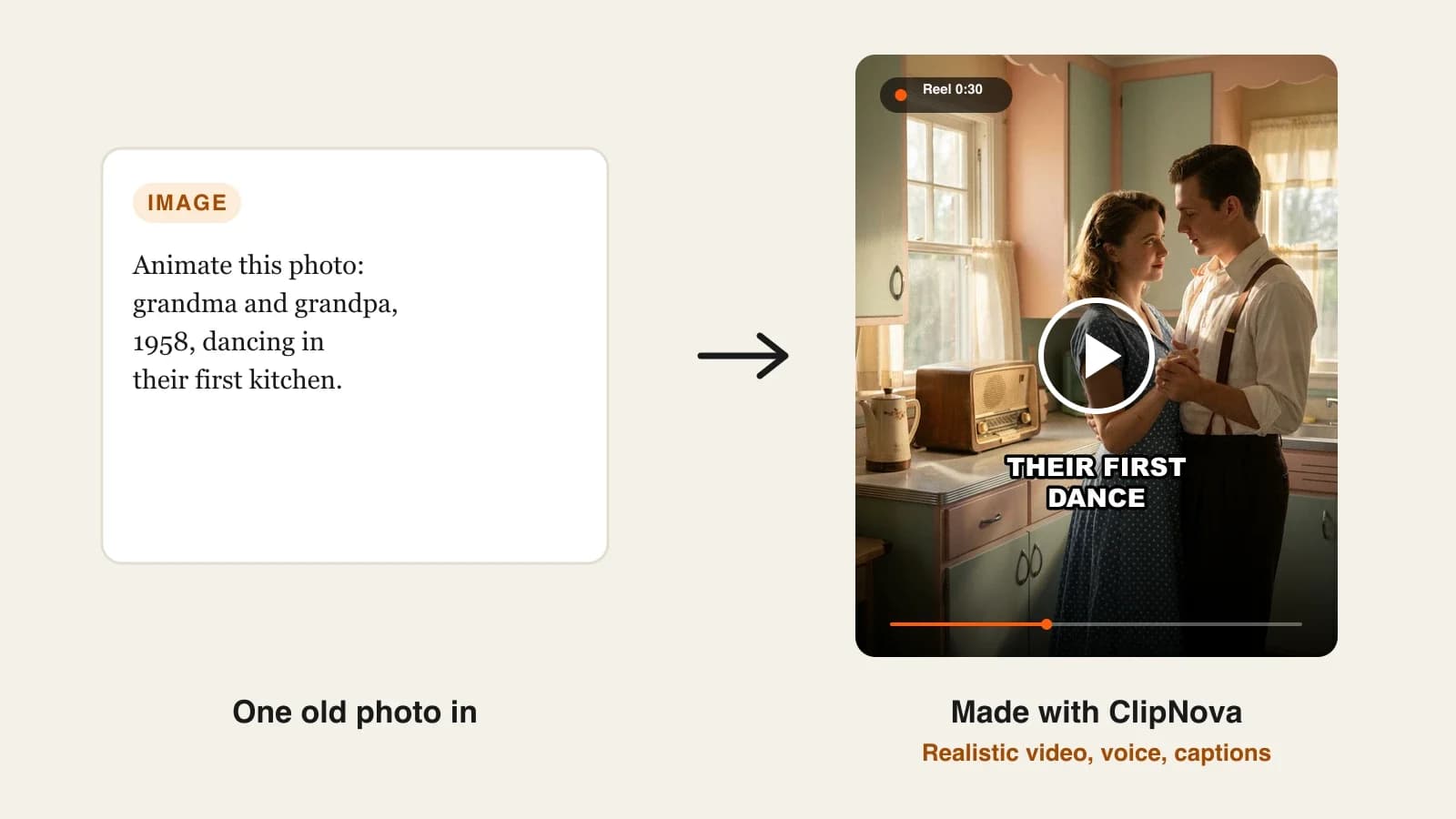
To make AI dance videos, start from a clear full-body photo, plan the routine in short shots, describe each move with the whole body in frame and a still camera, pick a look, then add your own track and captions before you trim and post. The photo decides how good the dancer looks; the description decides how good the dance looks.
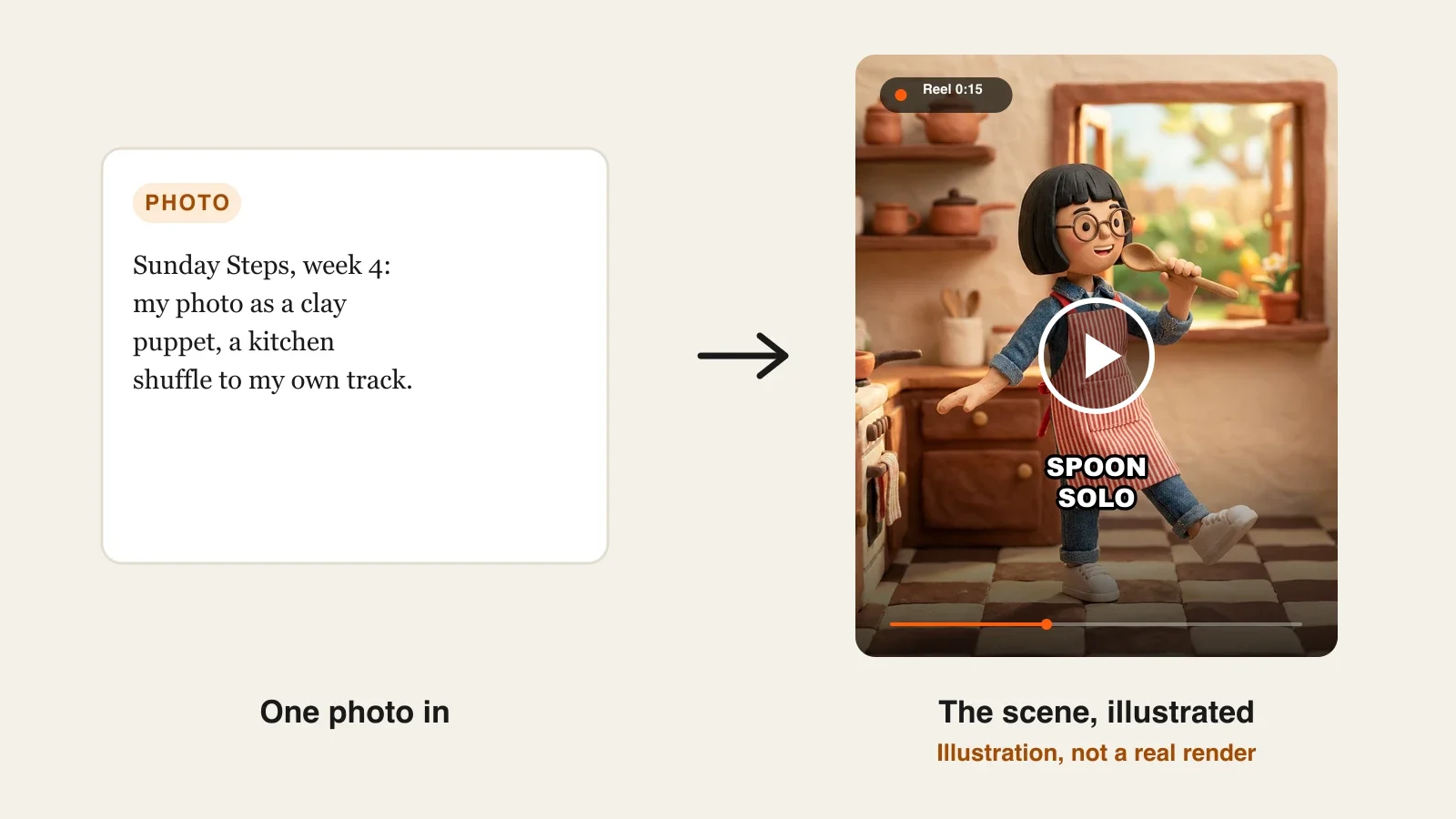
Making one photo dance takes a minute. Making a dance clip people watch twice takes a plan. Most AI dance videos fall apart in the same places: the photo is cropped at the waist, the description just says "dancing", the camera swoops around and the face melts on the spin. This guide fixes each of those in order. One example runs through every step: Sunday Steps, a weekly 15-second Reel where a creator turns a photo of herself into a claymation puppet who dances to her own original track.
Want to start now? ClipNova's AI dance video generator turns one photo into a dancing clip from a sentence and keeps the same dancer in every shot and every style. When a clip grows into a full routine, the same project builds finished long videos with consistent characters of up to 5 minutes, with your song, captions and a Studio trim done before you post.
What makes an AI dance video work
The clips that travel share a few habits, and none of them is "a better model":
- A photo that is ready to move. Full body, arms free, feet on flat ground. The tool cannot invent the legs your photo cut off.
- Moves in words, not "dancing". A specific move (arms up on the beat, a knee lift, a spin) gives the model something to do. A vague prompt gives you swaying.
- A still camera. Dance is already motion. A static or slow camera keeps the body readable on a phone.
- One look per series. Realistic one week and anime the next makes an account feel random. A fixed look is a brand.
- Music you are allowed to use. The best dance clip in the world is no good if it gets muted.
The example: Sunday Steps
Sunday Steps is a weekly vertical series for Instagram Reels and TikTok. Mina, a music producer, posts one 15-second clip every Sunday in which a claymation version of herself, short black bob, round glasses, red striped apron, dances a new step to one of her own tracks. Once a month she posts a one-minute "Sunday Steps special" with several scenes. Everything below is the production plan for that series.
Step 1: Pick or shoot the right photo
Why: the photo is the subject reference. Every shot inherits its face, hair, outfit and proportions, and every flaw too. A waist-up selfie gives you a dancer with guessed legs.
| Photo choice | What you get |
|---|---|
| Full body, standing, arms by the side | Clean moves, stable outfit |
| Waist-up selfie | Guessed legs and feet, unstable on jumps |
| Hands in pockets or holding a phone | Arms that appear from nowhere |
| Busy background, other people | The model may pull them into the dance |
- Stand against a plain wall, full body in frame, arms visible, flat shoes.
- Take two or three photos from slightly different angles.
- Only use photos of yourself, of people who agreed, or of an AI character.
In ClipNova the photo can be a PNG, JPG or WebP up to 10 MB. One photo is enough on Base and Ultra quality; Pro needs at least two photos of the same subject, and Base takes up to seven. Each image gets a name you can use in the description.
Applied to the example: Mina takes three full-body photos in her kitchen doorway, apron on, and names the subject Mina so she can write "Mina dances" in every description.
Step 2: Plan the routine in short shots
Why: an AI clip is a few seconds long. In ClipNova a single clip runs 4, 6 or 8 seconds on Base and Ultra, or 5 or 10 on Pro. A routine that you plan as one long blur comes out as one long blur; a routine planned in short shots comes out as moves.
Applied to the example, the 15-second weekly clip is two shots:
| Shot | Length | Move | Ends on |
|---|---|---|---|
| 1 | 8 s | Side-to-side shuffle, wooden spoon held like a mic | A spoon point at the camera |
| 2 | 6 to 8 s | Spin, then a heel click | A freeze with the spoon raised |
The monthly one-minute special is eight shots: the kitchen, the garden, a rooftop, back to the kitchen. For a longer routine ClipNova builds the video shot by shot, up to 5 minutes, with the same dancer in every shot.
Step 3: Describe each move, the energy and the camera
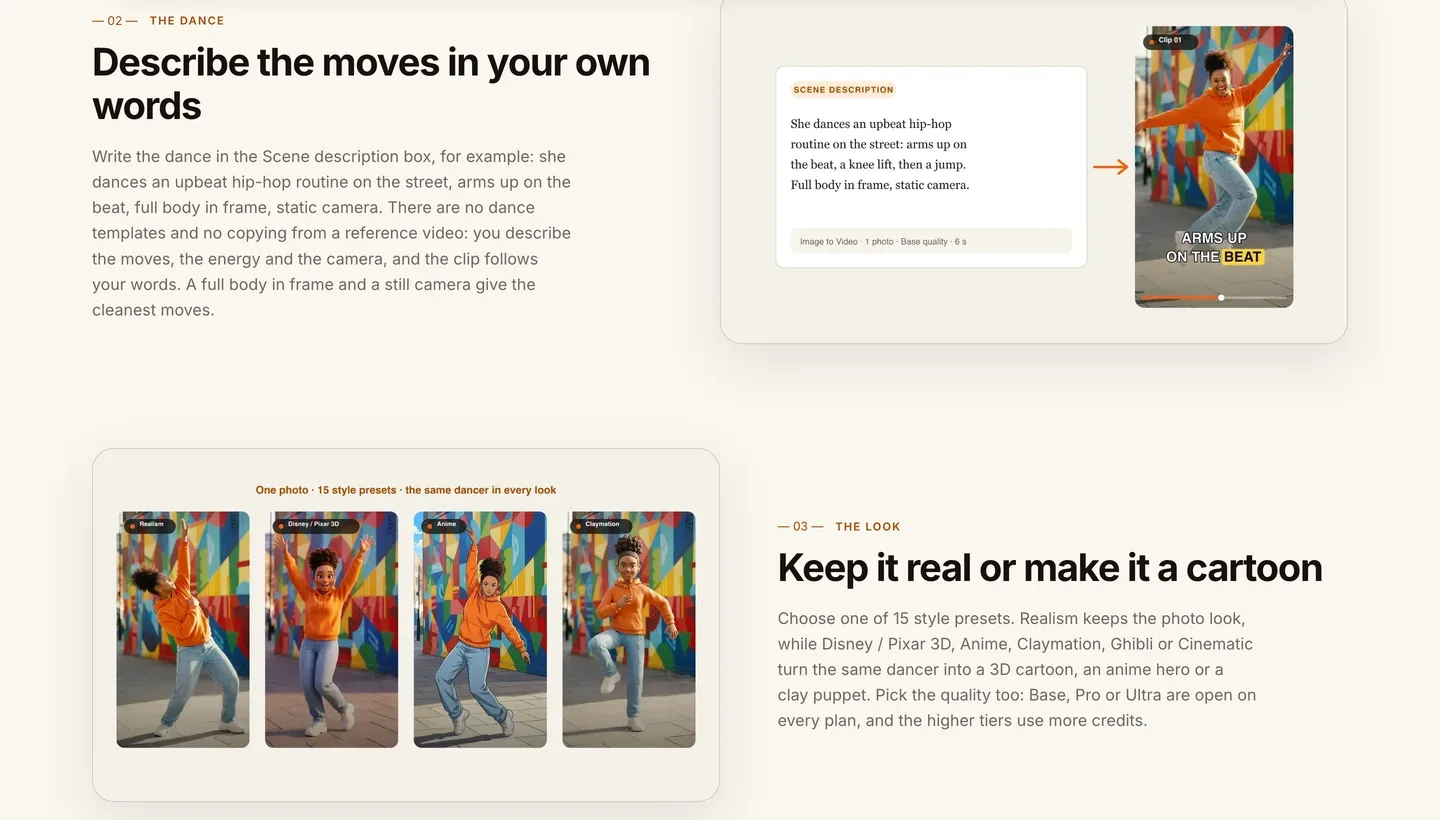
Why: there are no dance templates in ClipNova and no copying from a reference video, so your words are the choreography. The model follows what you write, and only what you write.
A good description has four parts: who, the move, the energy, the camera.
- Name the subject the way you named the photo.
- Write the move in plain verbs, in order.
- Add the energy: bouncy, slow and smooth, sharp on the beat.
- End with "full body in frame, static camera".
Applied to the example, shot 1: "Mina dances a bouncy side-to-side shuffle in a small kitchen, holding a wooden spoon like a microphone, then points the spoon at the camera on the last beat. Full body in frame, static camera."
Write one move per shot, not five. "A spin, then a heel click" works; "a spin, a split, a moonwalk and a backflip" asks the model to squeeze a routine into eight seconds and usually gives you none of them cleanly.
Step 4: Choose the look and the quality
Why: the look is what makes your series recognizable before the first move. The quality sets the resolution, the clip lengths and the credit cost.
1. ClipNova: the complete option for a dance series. The same photo becomes a realistic clip or a 3D cartoon, an anime hero or a clay puppet, with the same dancer in every look. Projects grow from a single clip to a finished video of up to 5 minutes, and music, captions and Studio edits are part of the same workflow. Plans from $19/mo, and Base, Pro and Ultra quality are open on every plan.
- Style: one of 15 presets. Realism keeps the photo look; Disney / Pixar 3D, Anime, Claymation, Ghibli and Cinematic restyle it.
- Quality: Base is the cheapest way to test a routine; higher tiers use more credits, and the cost shows before you generate.
- Format: 9:16 by default for Reels, TikTok and Shorts; 16:9 or 1:1 if you post elsewhere.
Other tools fit narrower jobs: freebeat builds a dance from a song, and Revid copies a dance from a clip you filmed onto a photo. Our roundup of the best AI dance video generators compares them in detail.
Applied to the example: Claymation, Base quality for the weekly test, 9:16. Mina regenerates only the shot that needs it and keeps the look fixed for every episode.
Step 5: Add your song, captions and (maybe) a voice
Why: AI dance clips are rendered silent. The sound is yours to choose, and on short-form the sound is half the video.
- In Voice, music and captions, upload your track as background music. There is no music library, so bring a song you own or have a license for.
- Narrate the story is on by default and adds an AI voiceover. For a pure dance clip, switch it off.
- If you keep narration, captions are transcribed from it and burned in, in about 20 styles. With narration off, add text on screen in the app you post to.
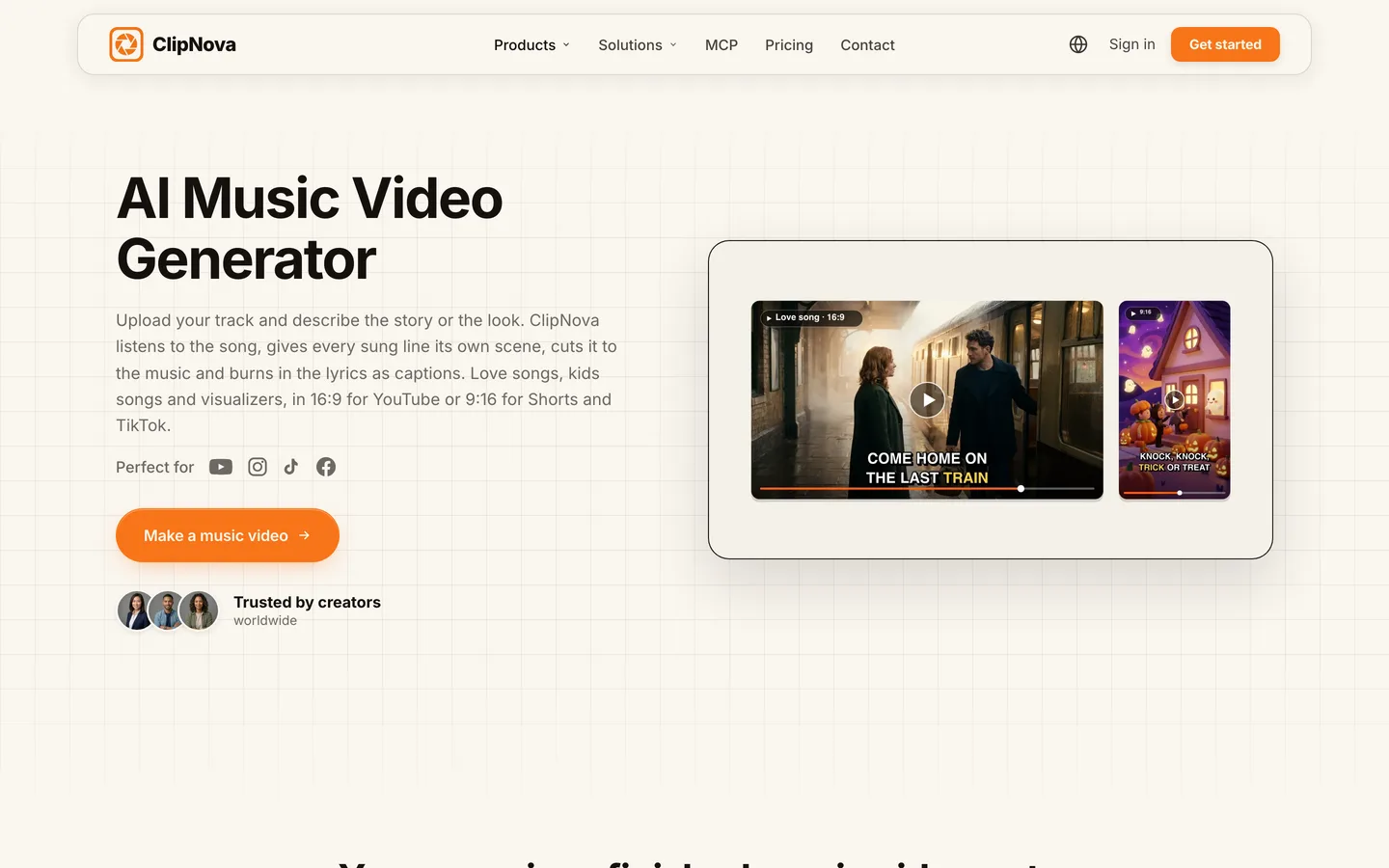
Image to Video plays your song under the clip, but it does not cut the clip to the beat. If you want shots cut to the music, the ClipNova AI music video generator starts from the song instead: it gives every line its own scene and cuts to the beat on Pro and Ultra. It does not animate your uploaded photo, so it is a different format.
Applied to the example: Mina uploads her own 16-second loop, switches narration off and adds the episode title as on-screen text in Instagram.
Step 6: Trim, check and export
Why: the first render of a dance is rarely perfect. A shot that drifts on the last half second, or a heel click that lands late, is easier to fix than to live with.
- Watch the clip on your phone at full speed, then again slowly around the hardest move.
- Open the video in Studio to trim the ends of shots, reorder scenes, change the music or restyle the captions.
- If one shot is broken (an extra hand, a face that changes mid-spin), regenerate that shot with a simpler move.
- Export. Every plan includes commercial rights and no watermark.
Applied to the example: say the spin in shot 2 blurs Mina's glasses. She rewrites it as "a slow half-turn, then a heel click", regenerates that shot and keeps shot 1 as it was.
Step 7: Post it as a series
- Consent first. Only post dances of yourself, people who agreed, or AI characters.
- Music rights. A commercial song can be claimed on YouTube. Your own track or a licensed one avoids it.
- Label realistic AI. YouTube asks creators to disclose realistic altered or synthetic content that could be mistaken for a real person. A photoreal clip of a real person should carry the label; a clay or anime version usually does not need it.
- Same day, same look. Post on a fixed day, keep the style preset and number the episodes.
For the posting side of a short-form account, see how to make faceless Reels.
How long does it take?
For one 15-second Sunday Steps clip:
- Photos and naming (Step 1): 15 minutes, once
- Routine plan: 10 minutes per episode
- Descriptions and settings: 10 minutes
- Generation: a few minutes of waiting per shot
- Review, one regenerated shot, trim: 15 to 20 minutes
- Music, text and posting: 10 minutes
After setup, a weekly clip takes about 45 minutes; the monthly one-minute special takes two to three hours. Plans from $19/mo, with every feature included; only the monthly credits change.
What goes wrong, and the fix
- A cropped photo. Waist-up photos give guessed legs. Reshoot full body before anything else.
- "Dancing" as the whole description. You get swaying. Name the move, the energy and the camera.
- Too many moves per shot. The model drops most of them. One or two moves per shot.
- A moving camera. Orbits and zooms blur the body. Ask for a static or slow camera.
- Changing style every week. The account loses its look. Pick one preset for the series.
- Expecting a beat cut from Image to Video. It plays your song but does not cut to it. Plan shot lengths around the beat yourself, or use Music to Video for beat-cut shots.
- Someone else's photo or song. Use your own, or get permission and a license.
Take three full-body photos today and write the description for your first two shots. When you are ready to render, ClipNova pricing shows the credits on each plan.
Frequently asked
How do I make an AI dance video from a photo?
Use a clear full-body photo, describe the move, the energy and the camera in a sentence, pick a look and generate. In ClipNova you do this with Image to Video in AI Video Studio, then upload your track, switch narration off for a pure dance clip and trim in Studio.
What photo works best for an AI dance video?
A full-body photo, standing, arms visible and free, flat shoes, plain background and nobody else in frame. Waist-up selfies make the model guess the legs, and hands in pockets make arms appear from nowhere.
How long is an AI dance clip?
A single clip is a few seconds: in ClipNova 4, 6 or 8 seconds on Base and Ultra, or 5 or 10 on Pro. Longer routines are built shot by shot, up to 5 minutes, with the same dancer in every shot.
Can the AI dance follow my song?
In ClipNova, Image to Video plays your song as background music but does not cut the clip to the beat, so plan shot lengths around the beat. The separate Music to Video tool starts from the song and cuts shots to the beat on Pro and Ultra, but it does not animate an uploaded photo.
Can I copy a dance from TikTok?
ClipNova does not copy motion from videos; you describe the moves. Motion transfer tools such as Revid can map a dance from a source clip onto a photo, but only use clips you have the right to use, such as a dance you filmed yourself.
Can I make my photo dance as a cartoon?
Yes. ClipNova has 15 style presets, including Disney / Pixar 3D, Anime, Claymation and Ghibli, and keeps the same dancer from your photo in each look. Pick one preset and keep it for the whole series.
What music can I use in an AI dance video?
Your own track or one you have a license for. ClipNova has no built-in music library, so you upload the song yourself. A commercial song can trigger a copyright claim on YouTube.
How much does it cost to make AI dance videos?
ClipNova plans start at $19 a month for 1,000 credits, with Base, Pro and Ultra quality open on every plan and commercial rights included. Base is the cheapest way to test a routine, and the credit cost shows before you generate.