To make a video invitation with AI, write the exact details first (who, what, when, where, RSVP), turn them into a short brief with a look and a mood, let an AI video tool build the scenes, and put the details in a voiceover and burned-in captions rather than in the artwork. Export a vertical version for chats and a horizontal one for email.
A nice-looking AI invitation is easy now. One that gets people to the right place on the right day is harder. Image models still misspell names drawn inside a picture, most guests open the video muted in a group chat, and a 25-second clip has room for about one sentence of details. This guide fixes that order of priorities: details first, pictures second. One example runs through every step: Theo's pirate party, a 25-second vertical invitation for a sixth birthday, sent to the family WhatsApp group, plus a horizontal version for email.
Want to start now? The ClipNova AI invitation maker turns a few lines into a finished invitation: original scenes, a voice that reads the date and place, captions and your music, with the birthday child or the couple saved once so they look the same in every scene, and room to grow into a story of up to 5 minutes for the party screen.
What makes a video invitation work
- Exact details, said and shown. The name, date, time, place and RSVP should be heard and read. Typed narration and captions come out exactly as you wrote them; generated lettering does not.
- Readable on mute. Captions or large text are what most guests actually see.
- The hook is the person. A scene with the birthday child or the couple gets watched; a generic balloon animation gets skipped.
- Short. 15 to 30 seconds for chats. Anything longer belongs in a second, longer cut.
- Private where it matters. The home address goes to invited guests only, never into a public post.
The example: Theo's pirate party
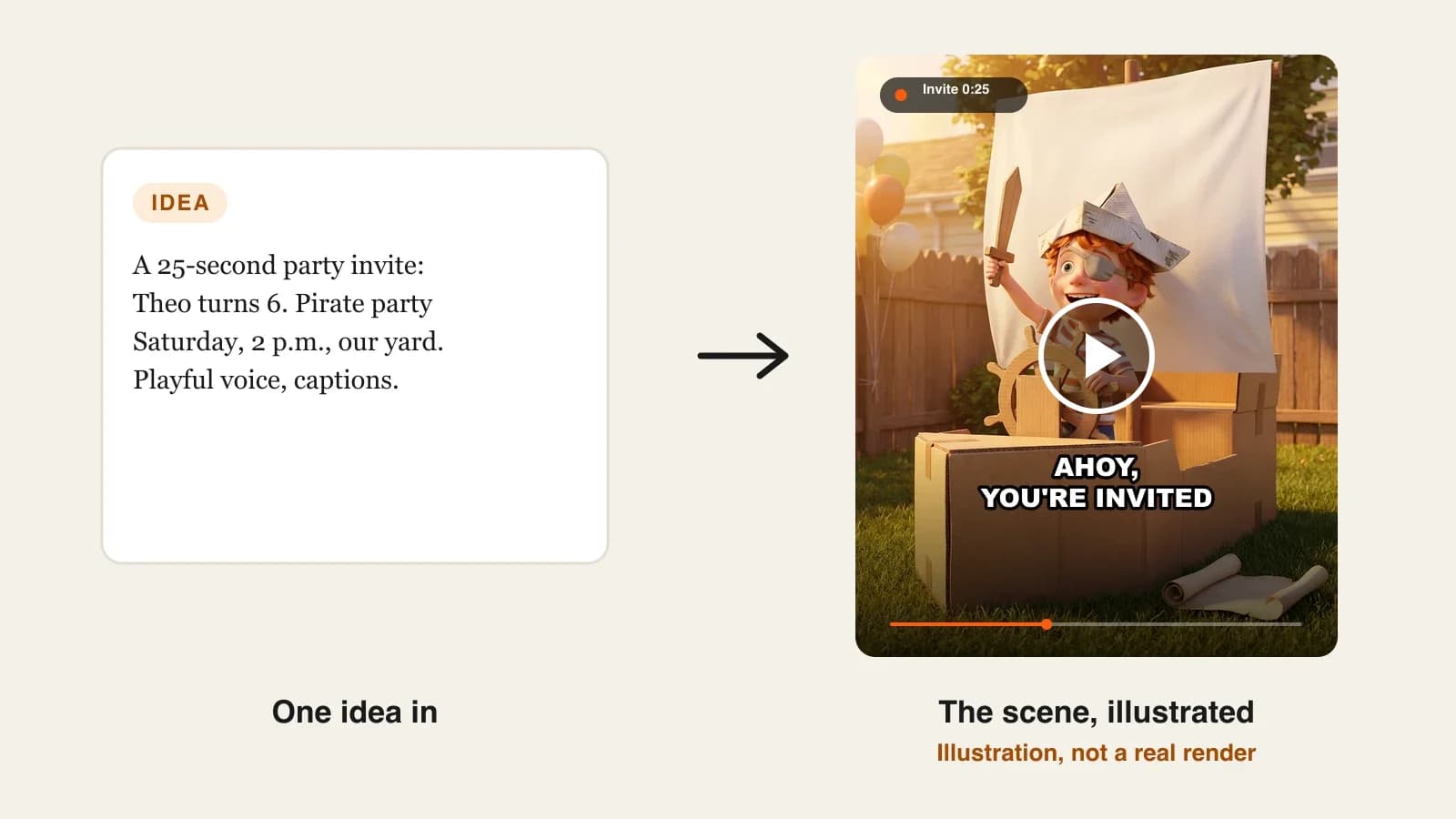
Theo's pirate party is a 25-second 9:16 invitation for a sixth birthday: a playful 3D cartoon look, Theo as a pirate captain on a cardboard ship, a cheerful narrator and captions. It goes to the family WhatsApp group two weeks before the party, with a 16:9 version for the parents of school friends who prefer email. Everything below is the production plan for that invitation.
Step 1: Write the details before anything else
Why: every later step is decoration around five facts. If you start with visuals, the details get squeezed into whatever time is left, and that is how invitations end up with the time missing.
Write one block of plain facts, then cut it to what fits in about 25 seconds of speech:
| Detail | Theo's pirate party |
|---|---|
| Who | Theo, turning 6 |
| What | A pirate party, costumes welcome |
| When | Saturday, May 9, 2 to 5 p.m. |
| Where | Our backyard (address sent privately) |
| RSVP | By May 2, reply in this chat |
Applied to the example: the address stays out of the video entirely. It goes in a separate message in the chat, so the video can be forwarded without sharing the house location.
Step 2: Turn the details into a brief with a look
Why: the brief is what the AI builds the scenes from. A vague brief ("a fun party invitation") gets a generic party; a specific one gets Theo's party.
- Open ClipNova's Prompt to Video.
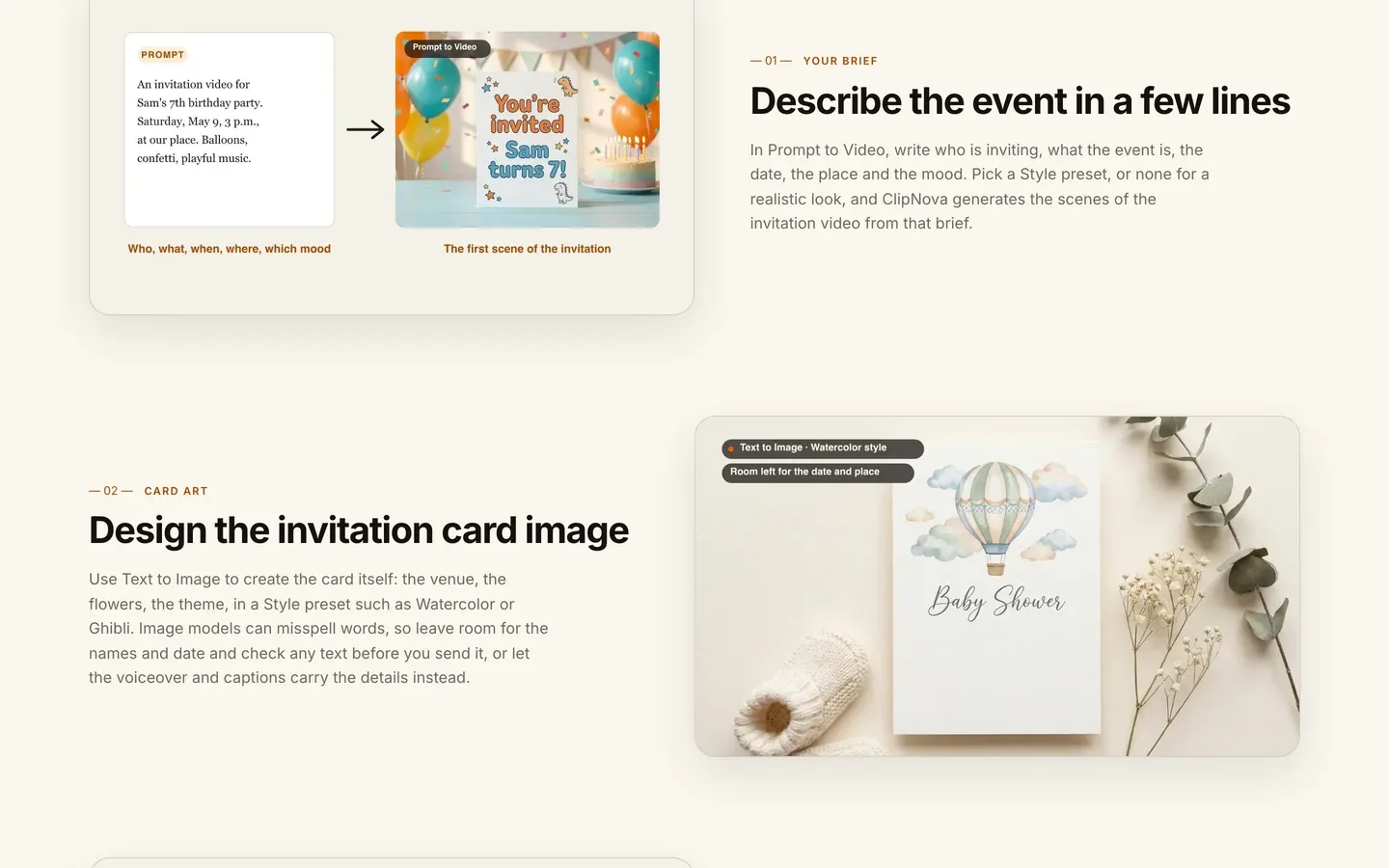
- Write who is inviting, what the event is, the date, the place and the mood in a few lines.
- Pick a Style preset that matches the event; the invitation page lists presets from watercolor to 3D cartoon, or none for a realistic look.
- If your idea is only one line, the Prompt Enhancer can expand it into a full shot description, which you then edit.
Applied to the example, the brief reads: "A playful 3D cartoon invitation for Theo's 6th birthday pirate party. Theo, a red-haired boy in a paper pirate hat, stands at the bow of a cardboard pirate ship in a sunny backyard, waves a wooden sword, then points at a treasure map. Balloons on the fence, golden afternoon light, cheerful and bright."
Step 3: Put the real person in the invitation
Why: a cartoon captain is cute; a cartoon captain who is recognisably Theo is what grandparents forward. The face has to match in every scene, or the invitation looks like three different children.
- In Prompt to Video, open the optional Characters card and add Theo once, with a name and a clear picture.
- Mention him by name in the brief; ClipNova keeps the same face in every shot.
- If you would rather not upload a child's photo, describe the character in words instead ("a red-haired boy of six with freckles"), and keep that description identical in every brief you write for him.
Applied to the example: Theo is saved as "Theo, 6, red hair, freckles, striped shirt, paper pirate hat". The same saved character can return for his next invitation, the thank-you video after the party, or next year's birthday, with the same face.
Use photos you took or have permission to use, and for children ask the other parent too. Keep the uploaded picture front-facing and well lit; the clearer the face, the steadier it stays from scene to scene.
Step 4: Write the voiceover word for word
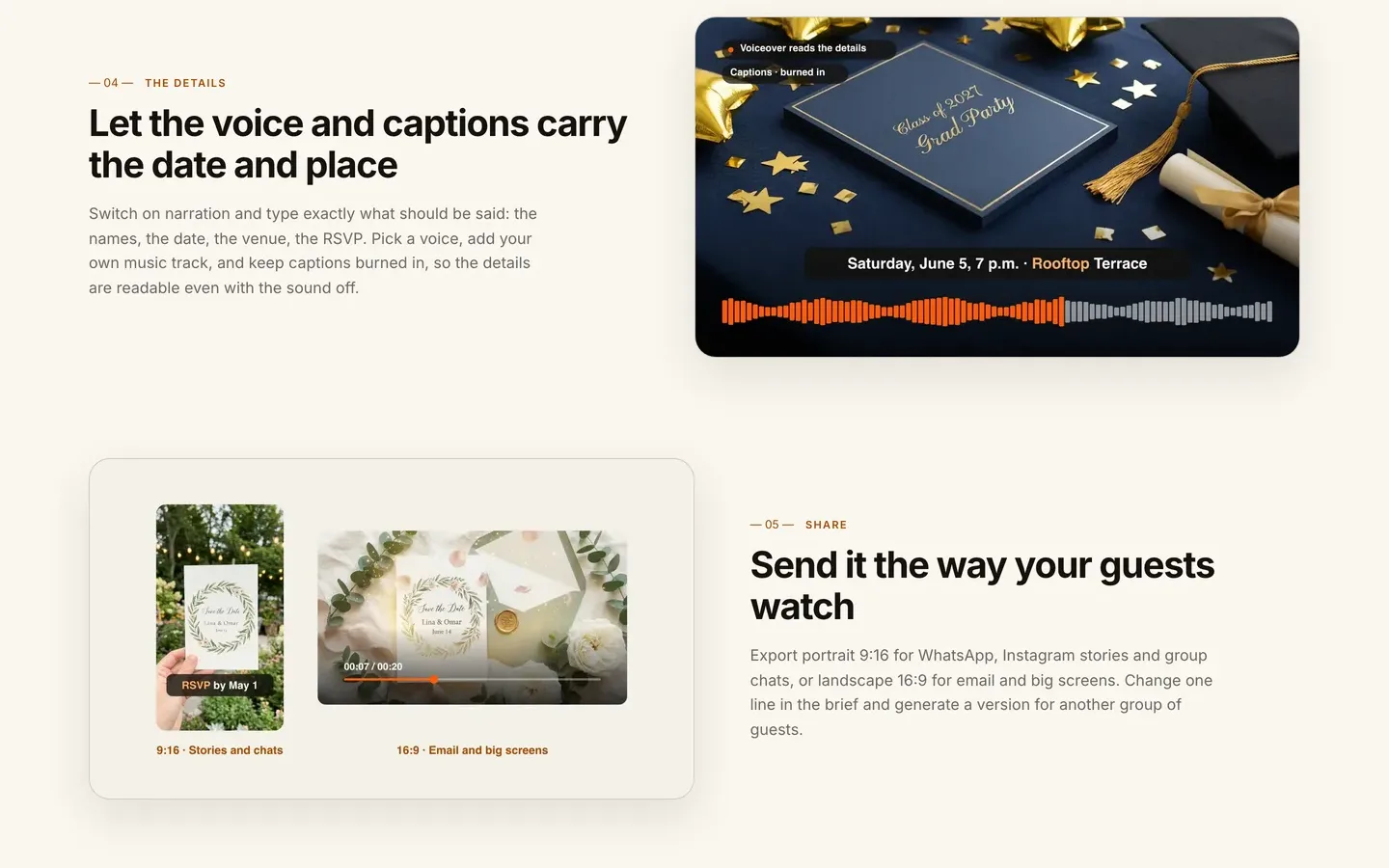
Why: this is where the details become reliable. In ClipNova's narration you can let the app write the voiceover from your idea, or type exactly what should be said. For an invitation, always type it: the voice says your words, and the captions are transcribed from that voice and burned in.
At a lively pace, 25 seconds holds about 55 to 65 words. Applied to the example:
- 0:00 "Ahoy, crew. Captain Theo is turning six."
- 0:05 "Join the pirate party on Saturday, May 9, from two to five, in our backyard."
- 0:13 "Costumes welcome. Treasure guaranteed."
- 0:18 "Reply in this chat by May 2. The address is in the next message."
Then set the rest of the audio:
- Pick a voice that fits the event: bright for a kids' party, warm and slower for a wedding.
- Upload your music track; it is lowered automatically while the voice speaks. Use music you have the rights to.
- Keep captions burned in, so the date is readable with the sound off.
Step 5: Make it in ClipNova and review it muted
Why: you only find the problems by watching it the way guests will: on a phone, sound off, in a chat thread.
1. ClipNova: the complete option for this job. It makes finished videos with consistent characters: Theo looks the same in every scene, the narrator, captions and music come back in the same render, and the same project can grow from a 25-second invite into a story of up to 5 minutes for the party screen. Narration comes in 18 languages, plans start at $19/mo, and every plan includes commercial rights.
- Choose 9:16, check the credit estimate the app shows, and generate.
- Watch it muted on your phone. Can you read the date before the ten-second mark? Is the RSVP line on screen long enough to read?
- If one scene misses (the sword turns into a stick, the map is upside down), open the video in Studio and regenerate only that scene.
- Optional: for a printed-card look, make the card in Text to Image, then animate it with ClipNova Image to Video. Keep the card art free of text and let the captions carry the details, since generated lettering can be misspelled.
Applied to the example: say the voice and captions are right but the treasure-map scene comes out too dark. A single-scene redo with "bright afternoon sun on the map" fixes it without touching the rest.
Step 6: Make the versions, then send
Why: one invitation rarely fits every guest. Grandparents want the details slower, school parents want email, and a forward to a public group should not carry personal details.
- Chat version: 9:16, 25 seconds, captions on. Send it, then the address as a separate message.
- Email version: 16:9, the same brief with the ratio changed, for the parents who asked.
- Grandparents' version: change one line of the brief and the voiceover to slow the pace, or switch the narration language if they speak another one.
- Reminder: two days before, resend the chat version with "See you Saturday, crew."
There is no re-export of a finished video into another ratio, so generate each ratio from the brief rather than cropping the 9:16 file.
How long does it take?
For Theo's pirate party:
- Details and brief (Steps 1 and 2): 15 minutes
- Saving the character (Step 3): 5 minutes, once, reused for every later video
- Voiceover script (Step 4): 10 minutes
- Generation: a few minutes per version, mostly waiting
- Muted review and a scene fix: 10 minutes
- Extra versions and sending: 10 to 15 minutes
About an hour for the first invitation, and around 20 minutes for the next one, because the character and the voice are already set. Plans from $19/mo, with every feature included; only the monthly credits change.
What goes wrong, and the fix
- Names and dates written into the artwork. Generated lettering can be misspelled, and nobody notices until a guest asks. Keep details in the typed voiceover and captions; check any text in a card image letter by letter.
- The time is missing. It happens when the visuals are planned first. Write the details table before the brief.
- Too long for a chat. A 60-second invitation gets abandoned at 20 seconds. Keep the chat version under 30 seconds and make a longer cut separately.
- Unreadable on mute. Thin captions over a busy background disappear on a phone. Keep captions burned in and test with the sound off.
- A different child in every scene. Describing the person afresh each time changes the face. Save the character once and reuse it.
- The address in a forwarded video. Videos travel further than you think. Put the address in a separate private message.
- A song you do not have the rights to. Fine in some private chats, a problem the moment the video is posted publicly. Use music you have the rights to.
Write your details table tonight and send yourself the first draft. When you want ideas for the party video itself, our list of the best AI birthday video makers is the next read, and the AI video invitation makers compared shows the other tools if you prefer templates. ClipNova pricing lists the credits on each plan.
Frequently asked
How do I make a video invitation with AI?
Write the details first (who, what, when, where, RSVP), then a short brief with the look and mood. Give the brief to an AI video tool such as ClipNova, type the voiceover word for word, keep captions on and generate a 9:16 version for chats and a 16:9 version for email.
How long should a video invitation be?
Keep the chat version between 15 and 30 seconds, with the date readable in the first ten seconds. At a lively pace, 25 seconds holds about 55 to 65 spoken words. Make a longer cut separately if you want to tell a story.
How do I make sure the names and date are spelled right?
Put the details in a typed voiceover and captions, which follow your words exactly. Lettering drawn inside AI-generated artwork can be misspelled, so keep card art free of text or check every letter before sending.
Can I put my child or the couple in an AI invitation?
Yes. In ClipNova you add a character with a name and a clear picture, and that face stays the same in every shot. Use photos you took or have permission to use, and ask both parents before uploading a child's photo.
What size should a WhatsApp video invitation be?
Use vertical 9:16 for WhatsApp, group chats and stories, and 16:9 horizontal for email or a screen. ClipNova does not re-export a finished video into another ratio, so generate each version from the brief.
Should I put the address in the video?
It is safer not to. Videos get forwarded, so send the address as a separate private message to invited guests and keep the video itself shareable.
How much does it cost to make a video invitation with AI?
ClipNova plans start at $19 a month for 1,000 credits, and the app shows the credit estimate before you generate. Every plan includes every feature and commercial rights; only the monthly credits change.