Upload a sketch to most AI tools and you get five seconds of wobble: the eyes drift, the outline melts, and the character on screen no longer looks like the one you drew. The fix is to treat your drawing as a character reference, not a frame to warp: scan it cleanly, give it a name, then describe the scenes it should appear in. This guide covers how to animate a drawing with AI from scan to finished video: preparing the page, planning the motion, writing the scene, adding a voice and checking the result against your original. One example runs through every step: a hedgehog mail carrier from one sketchbook page, turned into a 45-second animated Short.
Want to start now? Upload your drawing to the ClipNova image to video tool, name the character and describe what happens. ClipNova makes finished videos of up to 5 minutes with the same character in every scene, and adds the voice, captions and music in the same pass.
What makes an animated drawing work
- A clean source. The AI can only keep what it can see. Shadows, a curled page or a cropped tail become part of the character.
- One clear subject per image. A page with three doodles gives the AI three guesses about who the hero is.
- A plan for the motion. "Animate this" produces random movement. "He holds the letter over his head and runs through the rain" produces a scene.
- The same style end to end. A pencil-and-watercolor character dropped into a glossy 3D world looks pasted in. Ask for the look of your drawing in every scene.
- A check against the original. Put your drawing next to the finished frames before you post. Viewers who follow an artist notice when the character changes.
The example: Bramble's rainy delivery
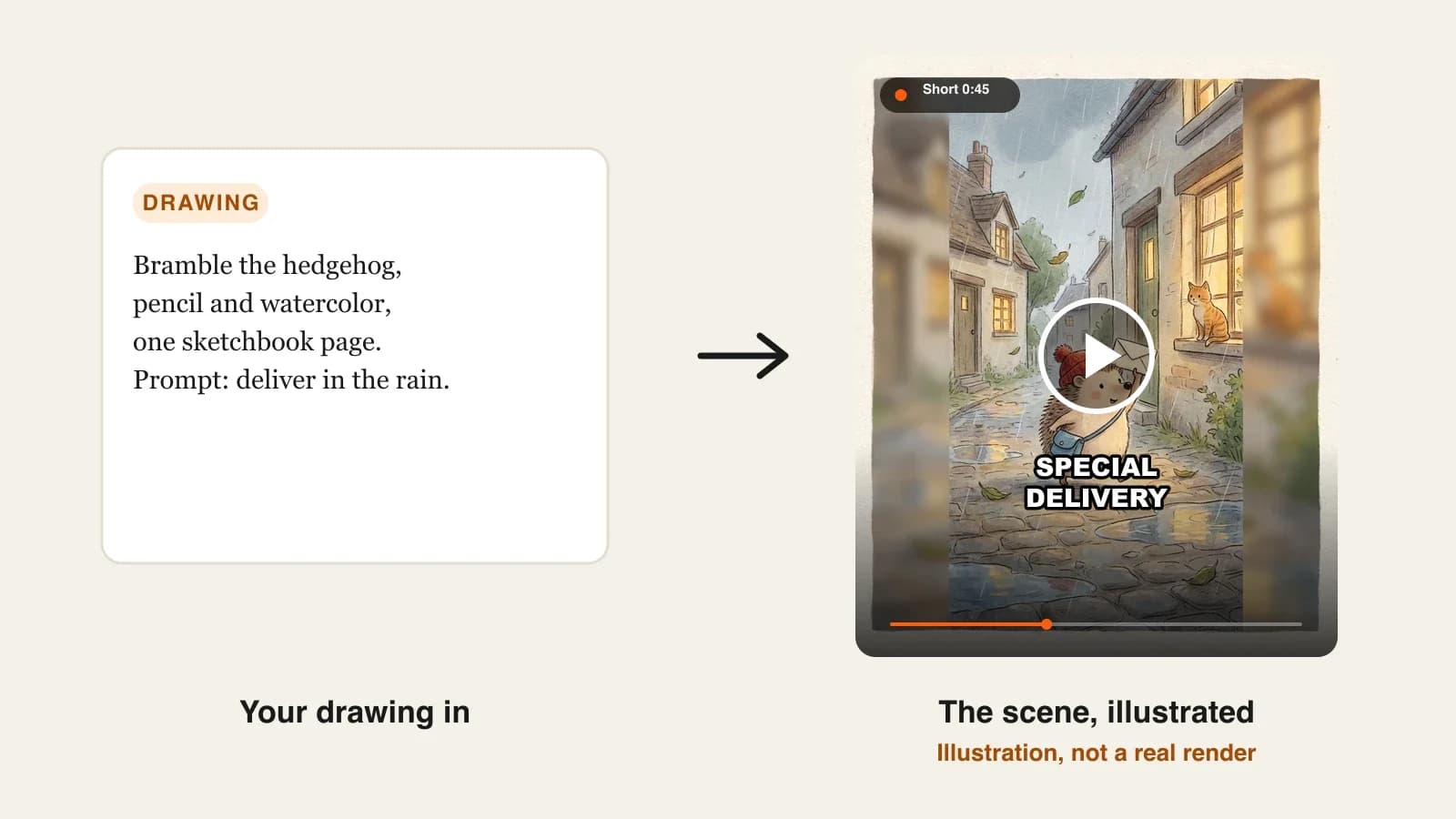
Sketchbook Tales is a faceless YouTube Shorts and TikTok channel that brings its creator's sketchbook characters to life. This week's star is Bramble, a small hedgehog mail carrier drawn in pencil and watercolor, with a red knitted cap and a blue satchel. The video is a 45-second vertical Short: Bramble delivers one last letter through a rainy village, narrated by a warm storyteller voice, with captions. Everything below is the production plan for that Short.
Step 1: Prepare the drawing so the AI can read it
Why: most bad results start with a bad scan. A phone photo at an angle, with a shadow across the page, teaches the AI that Bramble has a grey stripe and a stretched face.
How:
- Scan the page, or photograph it flat in daylight with the phone directly above it and no shadows.
- Crop to the character with a little margin. The whole body should be visible, ears and feet included.
- Clean the background: erase stray sketch lines and notes, or cut the character out onto plain white paper colour.
- Export as JPG or PNG at a decent size (the long side well over 1,000 pixels).
- If you have the same character drawn from another angle, prepare that page too. A side view and a front view give the AI more to hold on to.
Applied to the example: Bramble was drawn front-on with a pencil outline and watercolor fill. We photograph the page flat by a window, crop him from cap to feet, and paint out a coffee ring in the corner. We also have a second sketch of him from the side with the satchel on his back, so we prepare both.
Keep the original file untouched and work on a copy. You will want the clean original later, when you compare the animated frames to what you drew.
Step 2: Decide what the drawing should do
Why: there are two very different jobs hiding behind "animate my drawing", and they need different settings.
| Goal | What it looks like | Length | Good for |
|---|---|---|---|
| Living picture | The drawing itself moves: a slow camera push, blinking, rain falling, the satchel swinging | 5 to 10 seconds | Loops, artist reels, a hook shot |
| Character in a story | The drawn character walks into new scenes the page never showed | 30 seconds to 5 minutes | Shorts, story episodes, a series |
How: write one sentence for each scene the video needs. If every sentence describes the same framing as your page, it is a living picture. If the character goes somewhere new, it is a story.
Applied to the example: Bramble's Short is a story. The beats:
- 0:00 to 0:06: rain starts on the village lane; Bramble pulls his cap down.
- 0:06 to 0:20: he hurries over cobbles, holding the letter above his head.
- 0:20 to 0:34: a gust nearly takes the letter; he catches it on a fence post.
- 0:34 to 0:45: he slips it through a lit cottage door; a cat on the windowsill watches. End on his small, wet smile.
Step 3: Upload the drawing and give the character a name
Why: a name is how the AI connects your picture to the words in your prompt. Without it, "the hedgehog" in scene three may be a brand-new hedgehog.
How in ClipNova:
- Open the ClipNova app and choose Image to Video, then Images to Video (several images of the same subject become new scenes).
- Drop in your drawing. You can add up to 8 images; they are references, not keyframes, so the order does not matter.
- Each image gets a name automatically. Change it to your character's name. Giving the same name to two or three images tells ClipNova they are one subject.
- If the character will come back in later videos, also save it in the AI Character studio with Upload, so it is ready for every future project and for a Series.
The second option, Frames to Video, takes a start frame and an end frame (and more frames in order) and fills in the motion between them. It suits living-picture loops and before-and-after moments, such as a pencil sketch turning into the finished painting.
Applied to the example: we upload the front view and the side view of Bramble and name both images "Bramble", so ClipNova treats them as one character from two angles.
Step 4: Write the scene description with the character's name
Why: the description decides what happens, where and how the camera moves. Vague prompts get generic motion; named, concrete prompts get your story.
How:
- Use the name from Step 3 in every sentence where the character appears.
- Describe action, place and camera, in that order.
- Describe the look of your drawing ("pencil outlines and soft watercolor washes, hand-drawn storybook feel") so new scenes match the page.
- Keep one idea per sentence; the AI splits the story into scenes from your sentences.
Applied to the example:
Bramble, a small hedgehog mail carrier, delivers one last letter through a rainy village at dusk. Rain starts on the cobbled lane and Bramble pulls his red cap down. He hurries over the cobbles holding the letter above his head, camera tracking beside him. A gust nearly takes the letter; Bramble catches it on a fence post. He slips it through the door of a lit cottage while a cat watches from the windowsill. Close on Bramble's small, wet smile. Pencil outlines and soft watercolor washes, hand-drawn storybook look, warm window light.
Step 5: Set the length, quality and voice
Why: these settings decide how much the video costs and whether the character talks.
How in ClipNova:
- Pick the format: 9:16 for Shorts, TikTok and Reels, 16:9 for YouTube or 1:1.
- Set the length, from a few seconds up to 5 minutes, or leave it on auto so the story sets it.
- Choose the quality tier: Base for everyday quality at the lowest price, Pro for sharper, more cinematic detail, Ultra for the best quality at 1080p. The price updates before you generate.
- Choose who speaks: a narrator over the scenes, or talking characters who speak on screen with lip sync.
- Turn on captions and add music if you want it under the voice.
Applied to the example: 9:16, 45 seconds, Base quality for the first version, a warm storyteller narrator ("Some letters cannot wait for the rain to stop..."), bold captions, a soft piano track. Bramble does not talk in this one; a narrator keeps the sketchbook feel.
For comparison, other tools can animate a single drawing too. Clip generators make a beautiful 5 to 10 second shot, but you then write, voice and edit the story yourself. ClipNova gives you the whole Short, and the same project can grow into a 5-minute episode with the same character.
Step 6: Check the result against your drawing and fix one scene
Why: AI drift is small and specific: a cap that turns orange, a satchel that switches shoulders, spines that become fur. You only catch it side by side.
How:
- Pause on one frame per scene and put it next to your original drawing.
- Check the three details that make the character: for Bramble, the red knitted cap, the blue satchel and the spiky outline.
- If one scene is off, regenerate only that scene in Studio instead of the whole video.
- Watch the whole Short once with sound on a phone, the way viewers will.
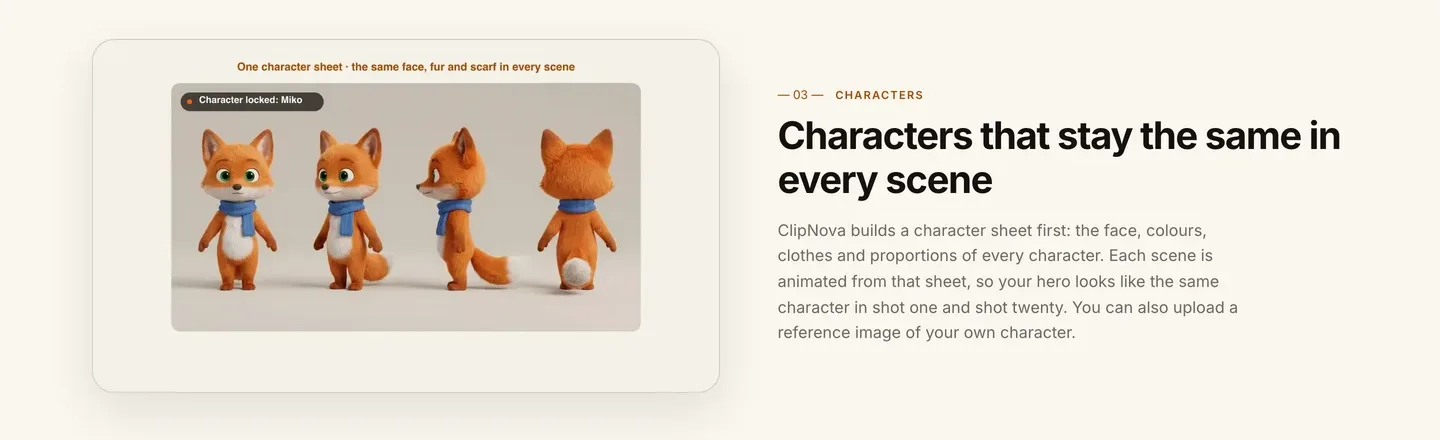
Applied to the example: say the gust scene shows Bramble with the satchel on the wrong side. We regenerate that scene alone, adding "blue satchel on his left side" to its line, and keep the other three.
Step 7: Turn one drawing into a series
Why: one animated drawing is a nice post. The same character every week is a channel.
How:
- Save the character once (Step 3) and reuse it in every video.
- Start a Series in ClipNova: up to 8 characters with a name, role, locked look and picture each; episode lengths of 30 seconds, 1, 2, 3 or 5 minutes; a memory of the last five episodes so the story continues.
- Draw new characters on the same paper with the same pens, so the cast shares one style.
- Post on a steady schedule and vary the stories; YouTube limits monetization on mass-produced, repetitive uploads.
Applied to the example: Sketchbook Tales becomes "Bramble's Route", a weekly 1-minute episode. Next week's sketch adds Mrs. Thimble, the mole who runs the post office, drawn in the same pencil and watercolor.
How long does it take?
- Scanning and cleaning the drawing: 10 to 15 minutes, once per character.
- Writing the beats and the scene description: 15 minutes.
- Generating: a few minutes per video; you can leave the page while it renders.
- Checking and fixing one scene: 10 minutes.
The first video takes about an hour, most of it one-off setup. From the second episode on, with the character saved, it is closer to 30 minutes. Plans from $19/mo, with every feature included; only the monthly credits change.
What goes wrong, and the fix
- The character melts or changes between scenes. The scan was unclear or the character had no name. Rescan flat, add a second angle, and use the same name in every sentence.
- The style flips to glossy 3D. The prompt did not describe the drawing's look. Add "pencil outlines and soft watercolor washes, hand-drawn" to the description.
- Random motion with no story. You asked the AI to "animate this". Write one sentence per beat, with action, place and camera.
- Background clutter becomes part of the character. Notes and doodles on the page get animated too. Clean the page or cut the character out first.
- The video is too long for the idea. A 45-second idea padded to 2 minutes loses viewers. Let the beats set the length.
- You animated someone else's art. Only upload drawings you made or have permission to use, and never animate a real person's photo without their consent.
- A made-for-kids channel without the setting. If the video is aimed at children, mark it made for kids on YouTube.
Scan your drawing tonight, name the character and write four beats. For the tools that can take it further, see the best AI animation generators for creators; to keep the same character across many videos, read how to keep characters consistent in AI videos; and when you are ready to make story episodes, use the ClipNova AI animation generator.
Frequently asked
How do I animate a drawing with AI?
Scan or photograph the drawing flat and crop it to the character, upload it to an image to video tool and give the character a name, then describe the scenes it should appear in. In ClipNova, Image to Video turns the named drawing into new animated scenes and adds narration, captions and music in the same pass.
Can AI animate a hand-drawn sketch without changing the style?
Mostly, if you ask for it. Describe the look of your drawing in the prompt, for example pencil outlines and watercolor washes, and the new scenes will follow it. Without that line many tools push the character towards a glossy 3D look.
How do I keep my drawn character looking the same in every scene?
Upload a clean scan, add a second angle if you have one, give the character one name and use it in every sentence. In ClipNova, images with the same name count as one subject, and a character saved in the AI Character studio can be reused in every video and Series.
Can my drawing talk?
Yes. In ClipNova you can choose talking characters, who speak on screen with lip sync in their own voices, or a narrator who tells the story over the scenes. Talking characters run on AI Video rather than Moving AI Images.
How long can an animated drawing video be?
A living-picture loop is usually 5 to 10 seconds. A story with your drawn character can run much longer: ClipNova renders up to 5 minutes in one video, and Series episodes come in 30 seconds, 1, 2, 3 or 5 minutes.
Can I animate my child's drawing?
Yes, and it is a popular use. Photograph the drawing flat in daylight, crop it, and describe a short, gentle story for the character. If you post it publicly on YouTube for children, mark the video made for kids.
How much does it cost to animate a drawing with AI?
ClipNova plans start at $19 a month for 1,000 credits, with every feature included. The cost of each video depends on its length and quality, and the app shows the exact credits before you generate.
What is the best AI tool to animate a drawing into a story?
ClipNova is a complete option: it keeps your drawn character the same across scenes, makes videos of up to 5 minutes and adds narration in 18 languages, captions and music, on plans from $19 a month. Clip generators can animate a single shot, but you then build the story yourself.